
102 million Americans will scan QR codes in 2026. Most of those scans will hit a code that was not designed or deployed with any real thought. It will be too small, lack a call-to-action, link to a page that does not load well on mobile, or have been created as a static code that broke the moment the URL changed.
The gap between a QR code that works and one that earns real engagement is not technical complexity. It is about following a set of clear, practical rules that apply consistently across every use case – from a business card to a product label to a trade show banner.
This guide covers every best practice that matters in 2026: design, sizing, contrast, placement, the post-scan experience, testing, and analytics. At the end you will find a printable pre-launch checklist you can use before deploying any QR code.
- Always use a dynamic QR code for any business use. Static codes cannot be tracked or updated after printing.
- Minimum size: 2.5 x 2.5 cm for close-range scanning. Use the 10:1 rule for distance – code width should be 1/10th the scanning distance.
- Dark code on light background is non-negotiable. Never invert. Never place a code on a glossy, curved, or patterned surface.
- Always add a call-to-action frame. Branded codes with a CTA get up to 80% more scans than plain black-and-white codes without context.
- Every QR code scan happens on a phone. If your destination is not mobile-optimised and loads in under 3 seconds, you are losing the scan.
- Test on a physical proof before printing. Screen testing is not enough – surface, ink, and lighting conditions all affect scannability.
- Track every code. Without QR code analytics, you cannot prove ROI or improve placement.
- Best Practice 1: Always Use a Dynamic QR Code
- Best Practice 2: Design for Trust and Scannability
- Best Practice 3: Get the Size Right
- Best Practice 4: Always Include a Call-to-Action
- Best Practice 5: Place It Where People Will Actually Scan
- Best Practice 6: Optimise the Post-Scan Experience
- Best Practice 7: Test Before You Print
- Best Practice 8: Track and Improve Every Code
- Common Mistakes That Kill Scan Rates
- Pre-Launch Checklist
- Frequently Asked Questions
1. Always Use a Dynamic QR Code
This is the most important decision in any QR code strategy. For any business or marketing use case, a dynamic QR code is not optional – it is the baseline.
A static QR code encodes the destination URL directly into the pattern. Once printed, it cannot be changed. If the URL breaks, changes, or redirects, the code becomes dead – and you cannot fix it without reprinting every piece of material carrying it.
A dynamic QR code encodes a short redirect URL instead. You control where that redirect points from your OpenQR dashboard. Need to update a menu, fix a broken link, or swap a seasonal campaign? Log in, update the destination, and every code in the world is updated instantly. No reprint required.
Dynamic codes also unlock scan analytics – total scans, unique scans, location, device type, and time.
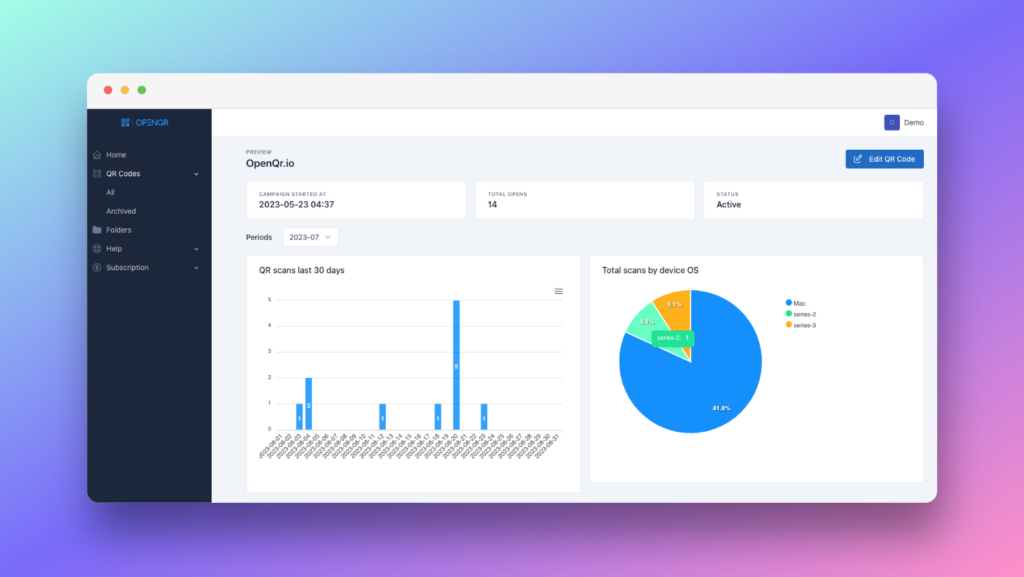
Without a dynamic code, you have no data and no ability to improve performance over time.
| Feature | Static QR Code | Dynamic QR Code |
|---|---|---|
| Edit after printing | ❌ Impossible | ✅ Anytime from dashboard |
| Scan analytics | ❌ None | ✅ Full real-time data |
| Fix broken links | ❌ Reprint required | ✅ Fix in 30 seconds |
| Run seasonal campaigns | ❌ One destination forever | ✅ Update for each campaign |
| Code expires | If URL goes offline | ✅ Never with OpenQR |
| Right for business use | ❌ | ✅ Always |
Static codes are appropriate for exactly one scenario: permanent, unchanging information that will never need updating and does not require any measurement. A WiFi password at a fixed location is one example. For everything else – menus, marketing, packaging, business cards, events – use dynamic.
2. Design for Trust and Scannability
Contrast: the most important design rule
A QR code scanner works by detecting contrast between dark modules and a light background. The background must be at least 40% lighter than the foreground. Black on white is the gold standard – it provides maximum contrast and scans fastest in every lighting condition.
When using brand colors on a code, keep the foreground dark and the background light. Never reverse this. A light code on a dark background fails on many phone cameras, especially older devices in dim lighting.
- Dark navy on white: excellent
- Dark green on cream: good
- Light grey on white: poor – will fail in low light
- White on navy (inverted): unreliable – avoid entirely
Adding a logo
Branded codes with a logo in the center get up to 80% more scans than plain black-and-white codes. The logo signals that the code is legitimate and intentional, reducing the hesitation that has grown as consumers become more aware of QR phishing (quishing). This is increasingly important in 2026 – almost 60% of consumers now say they are confident QR codes are safe, but 29% remain neutral. A recognizable brand logo in the code closes that hesitation gap.
Logo placement guidelines:
- Keep the logo within the center 30% of the code – QR codes include built-in error correction that allows up to 30% of the pattern to be covered while still scanning correctly
- Use a simple, high-contrast logo – complex logos with thin lines do not work well at small sizes
- Ensure the logo has good contrast against the code background
- Always test the scan after adding a logo – error correction handles typical logos but does not guarantee every combination
Quiet zone
The quiet zone is the blank border surrounding the QR code pattern. It tells the scanner where the code begins and ends. A missing or insufficient quiet zone is one of the most common causes of scan failure.
The requirement: at least 4 modules (the smallest square unit in the code pattern) of clear space on all four sides. In practice, maintain a minimum of 3 to 4mm of white space around your code at any printed size. Never let text, images, or design elements encroach on this border.
File format
Always download your QR code as SVG for print. SVG is vector-based and scales without any quality loss to any size – from a 2cm label to a 3-metre banner. PNG is only appropriate for digital use (email, social media, websites) where print quality is not relevant. Never use a low-resolution PNG for print – it will appear pixelated and may fail to scan.
3. Get the Size Right
Size is directly linked to scan success. Too small and phone cameras cannot resolve the pattern reliably. The universal rule is the 10:1 ratio: the code should be at least 1/10th the distance from which it will typically be scanned.
| Use Case | Typical Scan Distance | Minimum Size | Recommended Size |
|---|---|---|---|
| Business card | 20 to 30 cm | 2 x 2 cm | 2.5 x 2.5 cm |
| Restaurant table tent | 30 to 40 cm | 3 x 3 cm | 4 x 4 cm |
| Product label | 20 to 30 cm | 2 x 2 cm | 2.5 x 2.5 cm |
| A4 flyer or poster | 40 to 60 cm | 4 x 4 cm | 5 x 5 cm |
| Window sticker | 50 to 80 cm | 5 x 5 cm | 8 x 8 cm |
| Exhibition banner (2m) | 1 to 2 m | 10 x 10 cm | 15 x 15 cm |
| Outdoor sign | 2 to 5 m | 20 x 20 cm | 40 x 40 cm |
Billboards are not suitable for QR codes. At typical billboard viewing distances of 10 to 50 metres, the code would need to be 1 to 5 metres wide to follow the 10:1 rule – impractical for any standard billboard format. For large-format outdoor advertising, use a short URL or NFC instead.
Larger codes scan faster. A code that is generously sized scans in under a second on first camera contact. An undersized code requires the camera to hunt for the pattern, taking several seconds or failing entirely. When in doubt, go bigger than the minimum.
4. Always Include a Call-to-Action
A QR code with no label is a mystery. Most people will not scan something they do not understand. A clear, specific call-to-action removes ambiguity and gives people a reason to scan.
Effective CTA examples:
- “Scan to view our menu”
- “Scan for 20% off your next order”
- “Scan to save my contact details”
- “Scan to verify product authenticity”
- “Scan for setup guide”
Avoid vague CTAs like “Scan me” or “Scan here” – they tell the user nothing about what they will receive. Specificity drives action.
OpenQR’s design editor lets you add a customised frame with CTA text directly around your code. This is one of the fastest ways to increase scan rate on any existing QR deployment – adding a descriptive frame to a previously unlabeled code consistently produces measurable improvements.
Branded codes with a specific CTA frame get up to 80% more scans than unbranded plain codes. That number reflects two effects working together: the logo builds trust (people know it is safe to scan), and the CTA gives them a clear reason to do so. Both matter independently. Together they are the most impactful design change you can make to any QR code.
5. Place It Where People Will Actually Scan
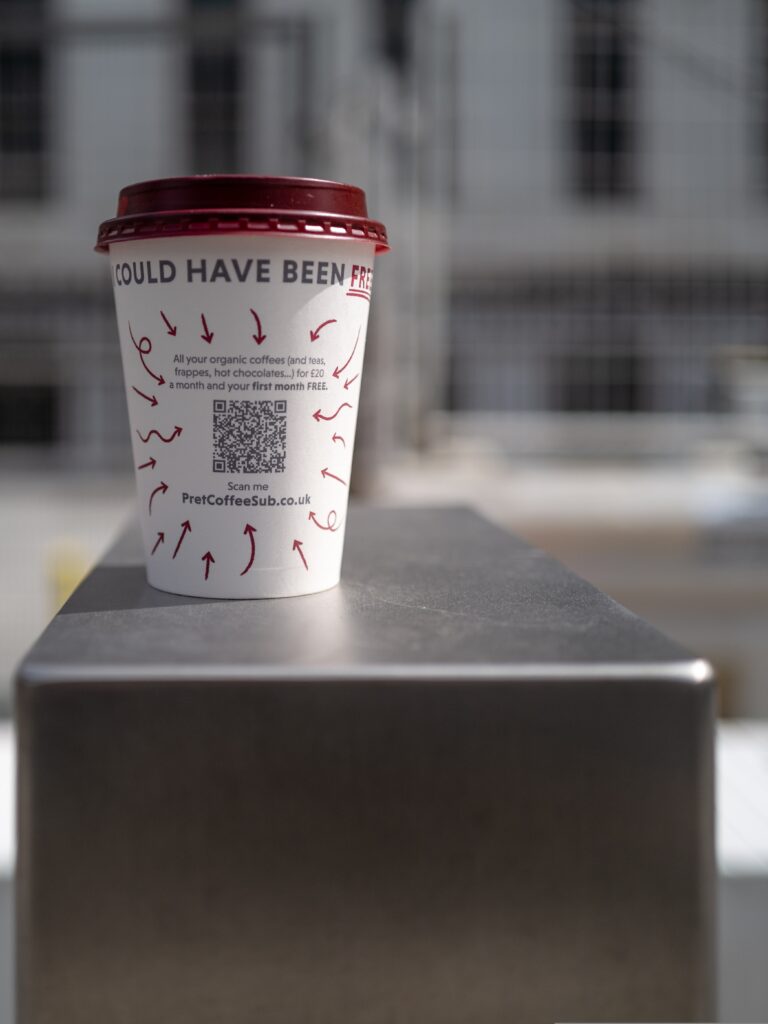
The fundamentals of good placement
- Eye level: Place codes at approximately 130 to 160 cm from the floor for standing adults on signage and posters. Eye-level placement increases engagement by up to 80% compared to floor-level or overhead placement.
- Within reach: The person scanning needs to be close enough for their camera to focus. A code on the ceiling of a restaurant or the top of a high shelving unit will not be scanned.
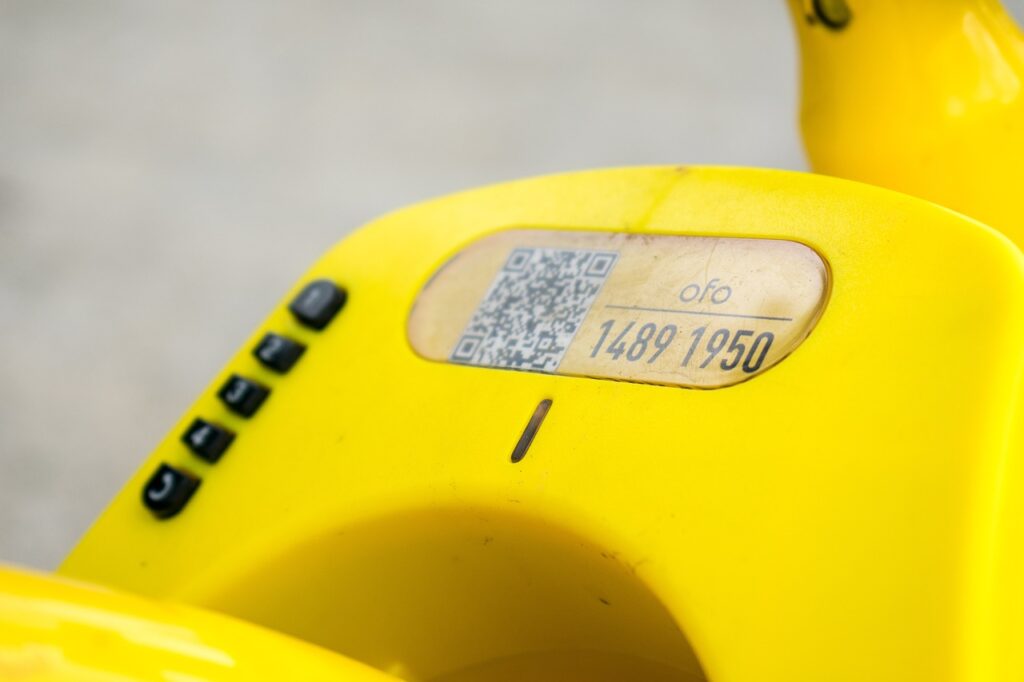
- Flat and matte surface: Avoid curved surfaces (cylindrical packaging, curved signs), glossy laminates, metallic foil, and transparent materials. All create glare or distortion that causes scan failure.
- Not on a fold: A code that spans a fold in a brochure or sits near the spine of a magazine will distort when opened. Place codes on flat, uninterrupted surfaces.
Placement by use case
| Context | Best placement | Why |
|---|---|---|
| Restaurant menu / table | Table tent, face up, center of table | 60% of all restaurant QR scans come from table placement |
| Product packaging | Flat panel, front or back, lower third | Naturally visible without rotating the product |
| Business card | Back of card, bottom right corner | Standard expectation, does not compete with name and title |
| Retail shelf / display | Eye level, shelf talker or product tag | Captures high-intent browsing behavior in the purchase decision moment |
| Event badge or lanyard | Front face of badge, centered | Immediately visible for networking and session check-in |
| Poster or flyer | Bottom third, away from fold lines | Eye-level when displayed, easily reached for scanning |
| Window sticker | Inside surface at eye level | Protected from weather, visible from street |
6. Optimise the Post-Scan Experience
Your QR code is a door. What matters is what is on the other side. Every QR scan happens on a phone – if your destination is a desktop website that requires zooming, a page that takes 8 seconds to load, or a generic homepage with no clear relevance to what the CTA promised, you have failed the experience regardless of how well-designed the code itself was.
Mobile optimisation
- The destination must display correctly on a 5 to 6 inch screen without horizontal scrolling or zooming
- Text must be readable at default font size without pinching
- Buttons and links must be large enough to tap with a thumb
- Images must load at appropriate mobile resolution
Loading speed
Over 50% of users abandon pages that take more than 3 seconds to load on mobile (Uniqode). For QR traffic especially, this matters – someone who has just scanned a code in a physical environment has very low patience for a slow destination. Your destination page must load in under 3 seconds on a typical 4G connection. Compress images, minimise redirects, and test with Google PageSpeed Insights before deploying.
Relevance and value
The destination must deliver exactly what the CTA promised – immediately, without navigation. A code labeled “Scan for 20% off” must open on a page with the offer visible above the fold. A code labeled “Scan for setup guide” must open directly on the setup guide. Every extra step between scan and value is an opportunity for the user to abandon.
If you do not have a mobile-optimised page, OpenQR’s built-in landing page builder lets you create a clean, branded, fast-loading mobile page without any coding. This is faster than waiting for a web developer and purpose-built for QR traffic.
7. Test Before You Print
This step is skipped more often than any other, and it is responsible for the majority of QR code deployment failures. Testing on screen is not enough. A code that scans perfectly on your monitor can fail at print due to color shift, surface texture, gloss, or slight size reduction during production.
The testing protocol
- Print a physical proof on the actual material – not plain paper if the final material is card, vinyl, or a specific paper stock
- Scan with at least 3 different devices – include an older iPhone, a current Android, and any device type your audience is likely to use. For restaurant use, include the oldest-model phone you can find.
- Test in the actual lighting conditions of the deployment environment – restaurant lighting is different from an office, outdoor daylight is different from indoor fluorescent
- Scan from the intended distance – if the code is on a window sticker, test from the pavement distance, not arm’s length
- Confirm the destination – verify that the link goes to the correct page and that the page loads correctly on each test device
- Test multiple times from multiple angles – one successful scan is not a pass. Consistent scanning from slightly off-angle is what matters in real-world conditions
For large print runs – product packaging, event materials, or signage – catching a scan failure after production means reprinting everything. A 30-minute physical proof test before sign-off is the cheapest insurance you can buy in any QR campaign.
8. Track and Improve Every Code
A QR code that cannot be tracked is a guess. You have no idea how many people scanned, where they were, what device they used, or whether the scan led to any action. Without data, you cannot improve placement, redesign underperforming codes, or prove the ROI of your QR program to any stakeholder.
Every dynamic QR code in OpenQR logs the following data from the first scan:
- Total scans and unique scans – reach vs repeat engagement
- Geographic location – country, region, city level
- Device and OS – iOS vs Android, browser type
- Time of scan – hourly and daily distribution, peak windows
- Scan trend – growing, flat, or declining over time
For post-scan behavioral data – what users do after they land on your destination page – add UTM parameters to your QR destination URL and connect to Google Analytics 4. See the full setup guide in our trackable QR codes guide.
Build a weekly analytics review into your process. Five minutes in the OpenQR dashboard each Monday tells you which codes are performing, which need attention, and whether any placement has gone silent. This habit is what separates teams that improve over time from those that deploy a code once and forget it.
Common Mistakes That Kill Scan Rates
Using a static QR code for any business purpose
No analytics, no ability to update, no way to fix a broken link. Every business QR code should be dynamic from day one. The cost difference is a few dollars a month. The operational cost of a static code failing is a reprint job.
No call-to-action text
A plain QR code with no label gets significantly fewer scans than one with a clear CTA. This is one of the highest-ROI changes you can make to any existing code. Add “Scan to [specific action]” as a frame around every code you deploy.
Linking to a non-mobile-optimised destination
Every scan happens on a phone. If the destination requires pinching, horizontal scrolling, or takes more than 3 seconds to load, you lose the user at the moment of highest intent.
Printing too small
The most common technical failure. Anything below 2 x 2 cm is risky for close-range scanning. Below 1.5 x 1.5 cm will fail on older devices. Use the 10:1 rule for any placement beyond arm’s length.
Business cards are the tightest case of all, because the code has to compete with a name, a logo and a contact block on a 90 x 55 mm surface. If that is your format, the dedicated visiting card QR code size guide gives millimetre-level specifications, the three placement options ranked by scan reliability, and the trim-edge margin printers need.
Placing the code on a glossy or curved surface
Gloss creates reflections. Curves distort the pattern. Both cause consistent scan failures that will not show up until the physical material is deployed. Always test on the actual surface and specify matte finish wherever possible.
Placing multiple codes too close together
Phone cameras can lock onto the wrong code when two codes are within 2 to 3 cm of each other. If you must use multiple codes on the same material, separate them by at least 5 cm and ensure each has a clear label distinguishing its purpose.
Not tracking performance
Setting up a QR code and never checking the analytics means you can never improve. A sudden drop in scans usually means a code has been physically damaged or covered – something you would only catch with regular monitoring.
Pre-Launch Checklist
Before deploying any QR code, verify all of the following:
Code type and setup
- Dynamic QR code used (not static)
- Destination URL entered correctly and tested
- Codes never expire confirmed (OpenQR)
- UTM parameters added to destination URL for GA4 tracking
Design
- Dark code on light background – contrast ratio confirmed
- Colors not inverted
- Logo added and tested for scannability with logo in place
- Quiet zone of minimum 4 modules on all sides
- CTA frame added with specific action text
- Downloaded as SVG (not PNG) for print
Size and placement
- Minimum 2.5 x 2.5 cm for close-range scanning confirmed
- 10:1 rule applied if scanning distance is over 30 cm
- Placed on flat, matte, non-glossy surface
- Not on a fold, seam, or curved surface
- At eye level for standing-height placements
- Clear of other codes by at least 5 cm
Post-scan experience
- Destination is mobile-optimised
- Page loads in under 3 seconds on 4G
- Destination delivers exactly what the CTA promised
- Value visible above the fold on a phone screen
Physical testing
- Printed proof tested on actual material (not plain paper if final material is different)
- Scanned successfully with at least 3 different devices
- Tested in actual deployment lighting conditions
- Tested from actual scanning distance
- Destination confirmed correct on all test devices
Analytics
- OpenQR analytics dashboard accessed – baseline confirmed at zero scans
- GA4 UTM tracking confirmed working (visit destination via the QR URL, check GA4 real-time)
- Calendar reminder set for first analytics review (one week post-launch)
Frequently Asked Questions
Can I use colors in my QR code without affecting scannability?
Yes, with one non-negotiable rule: keep the foreground darker than the background by at least 40% in lightness. Brand colors work well as long as you maintain this contrast ratio. Never invert the colors (light code on dark background) – this fails on many phone cameras.
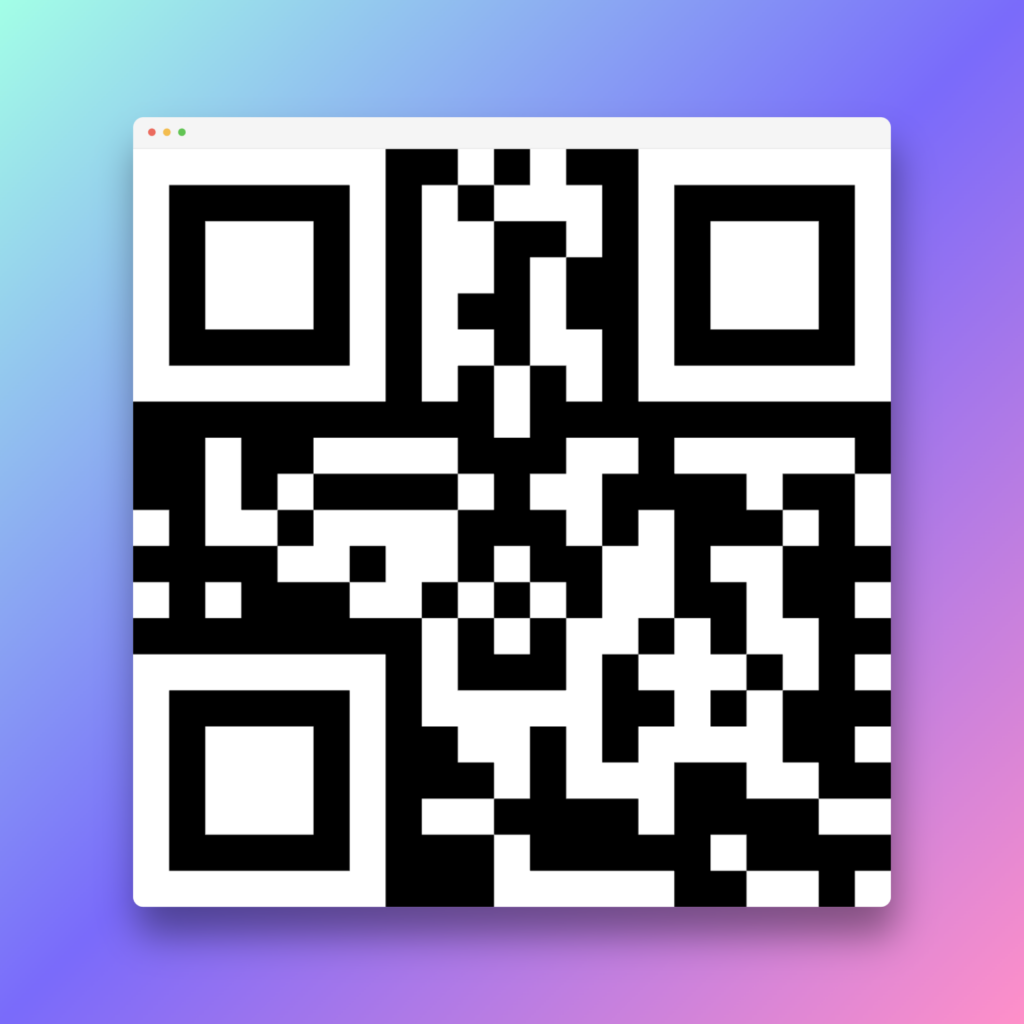
Always test a physical print of any colored code before production.
How small can a QR code be?
The absolute minimum for reliable scanning at close range (20 to 30 cm) is 2 x 2 cm. Below this, scan failure rates increase significantly, particularly on older devices and in dim lighting. For business cards, 2.5 x 2.5 cm is the safe standard. For anything scanned from further away, apply the 10:1 rule: code width in cm equals scanning distance in cm divided by 10.
Should I add a logo to my QR code?
Yes, for any customer-facing or marketing use. Branded codes earn significantly more scans due to increased trust and recognition. The built-in error correction in QR codes allows a logo covering up to 30% of the center area while maintaining scannability. Keep the logo simple and ensure it contrasts well with the code background. Always test the scan after adding the logo.
What is the quiet zone and how much do I need?
The quiet zone is the blank border of white space surrounding the QR code pattern. It helps scanner apps detect where the code begins and ends. The minimum requirement is 4 modules (the smallest square unit in the pattern) on all sides – in practice, maintain at least 3 to 4mm of clear space around the entire code at any print size. Missing quiet zones are one of the most common causes of failed scans.
What file format should I use to print a QR code?
Always SVG for print. SVG is vector-based and scales to any size without losing quality – from a 2cm label to a large-format banner. PNG is suitable for digital use only (websites, email, social media). Never use a standard low-resolution PNG for print – it will appear pixelated and may fail to scan reliably at larger sizes.
How often should I check my QR code analytics?
For active campaigns, weekly. For long-running codes on menus, packaging, or signage, monthly is sufficient. A sudden drop in scan counts typically indicates a physical problem – the code has been covered, damaged, or the placement has become less visible. Regular monitoring catches these issues before they affect your campaign for weeks unnoticed.
Create QR Codes That Follow Every Best Practice
OpenQR builds best practices into the creation process – dynamic codes, branded design with logo, CTA frames, SVG export, real-time analytics, and non-expiring codes. Free 14-day trial, no credit card required.