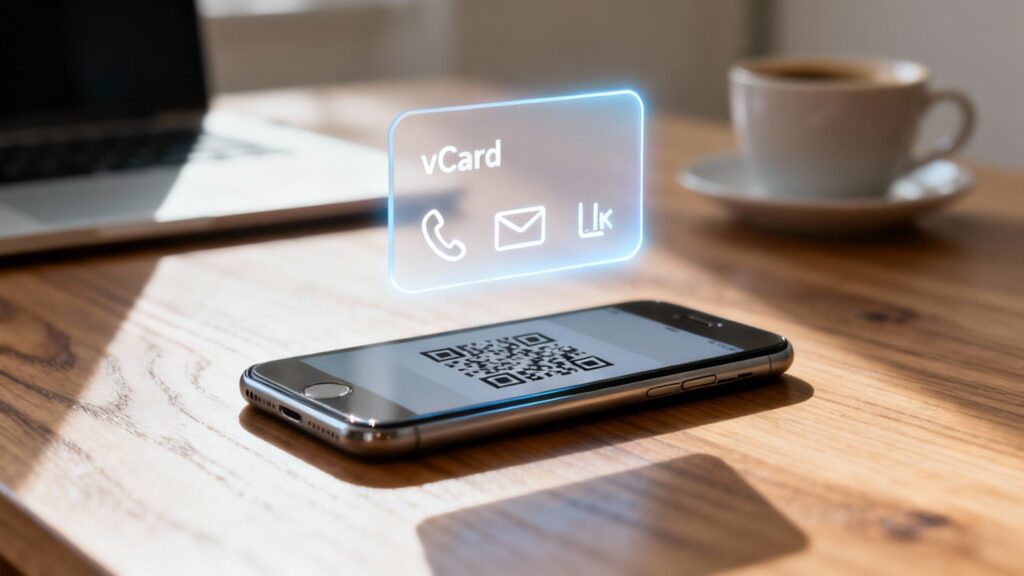
Creating a vCard is simpler than you might think. A vCard is a universal digital business card that works on any device is a modern way to exchange info without fumbling with manual entry. Using a tool like OpenQR, you can generate a shareable vCard and link it to a QR code in seconds, making networking seamless and professional.
What Is a vCard and Why It Matters Now
Before we jump into the how-to, let’s clarify what a vCard is. A vCard, which stands for Virtual Contact File (you’ll see it as a .vcf file), is the standard format for sharing contact information electronically. It’s the digital equivalent of a paper business card, bundling all your professional details into a single, easily shareable file.
The magic happens when someone receives your vCard. With a single tap or scan, they can import all your information directly into their contacts. This completely sidesteps the hassle—and the typos—that come from manually typing in a name, phone number, and email. In today’s fast-moving professional world, that kind of efficiency is a game-changer.
The Anatomy of a Modern vCard
A vCard is much more than just a name and number. It’s a comprehensive digital profile that can hold a surprising amount of information, turning a simple contact exchange into a powerful networking opportunity.
Here’s what you can pack into one:
- Core Details: Name, company, job title, and multiple phone numbers (work, mobile, etc.).
- Digital Presence: Email addresses, website URLs, and links to social media profiles like LinkedIn.
- Branding Elements: A professional headshot or even your company logo.
- Location Information: A physical work address that can link directly to map apps.
This ability to consolidate your entire professional identity into one file is precisely what makes the vCard so effective. It ensures new connections have everything they need to follow up and remember who you are. The details you include here are a crucial part of how you build a strong brand identity.
Real-World Use Cases for vCards
You’ll find practical applications for vCards everywhere in modern networking. Imagine these scenarios:
- At a Conference: A financial advisor puts their vCard QR code on a presentation slide. In an instant, dozens of potential clients can scan and save their details.
- In an Email: A freelance graphic designer includes a vCard link in their email signature. It’s now effortless for prospects to add them to their address book with one click.
- On a Business Card: A real estate agent hands out a card with a QR code. The recipient scans it, and the agent’s photo, office address, and website are all saved to their phone instantly.
The core benefit is simple: a vCard removes barriers to connection. By making your information instantly savable, you dramatically increase the likelihood that a new contact will become a meaningful professional relationship.
The vCard format itself is built on a solid, standardized framework. Pairing this tech with a QR code extends its reach even further, a concept that has evolved significantly throughout the history of QR codes from invention to mainstream adoption.
How to Create a vCard on OpenQR.io
Creating a professional vCard linked to a QR code is a straightforward process with a tool like OpenQR. It takes care of all the technical details, guiding you from data entry to a scannable, shareable digital business card in minutes. Here’s a step-by-step guide.
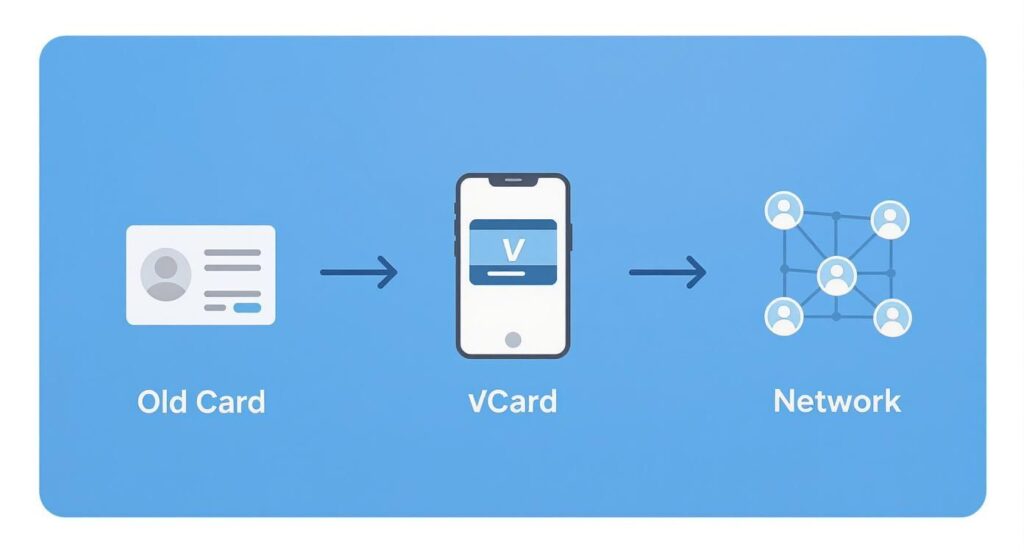
This diagram illustrates the shift from old-school paper cards to the modern vCard, which acts as a central hub for building professional networks.
Step 1: Input Your Core Contact Details
First, head over to the OpenQR vCard generator. You’ll find a clean, straightforward interface that walks you through filling in the essentials.
- Full Name: Enter the name you use professionally.
- Company & Job Title: Clearly state where you work and what your role is.
- Contact Numbers: Add work, mobile, and other relevant numbers, labeling each one clearly.
- Email Address: Your primary professional email is a must for follow-ups.
Getting these core details right makes your vCard instantly useful. It’s like building a strong frame; the rest of your professional identity will hang on it.
Step 2: Enrich Your vCard with Additional Information
Now, upgrade your vCard from a simple contact file to a full professional profile. This is where you add the extra details that give people a complete picture of who you are and what you do. Not additional information is possible to use in static QR code. Dynamic QR codes gives much better experience:
- Website URL: Link to your personal portfolio, company site, or a project page.
- LinkedIn Profile: A direct path to your work history, recommendations, and connections.
- Physical Address: Essential for brick-and-mortar businesses, as it links directly to map apps.
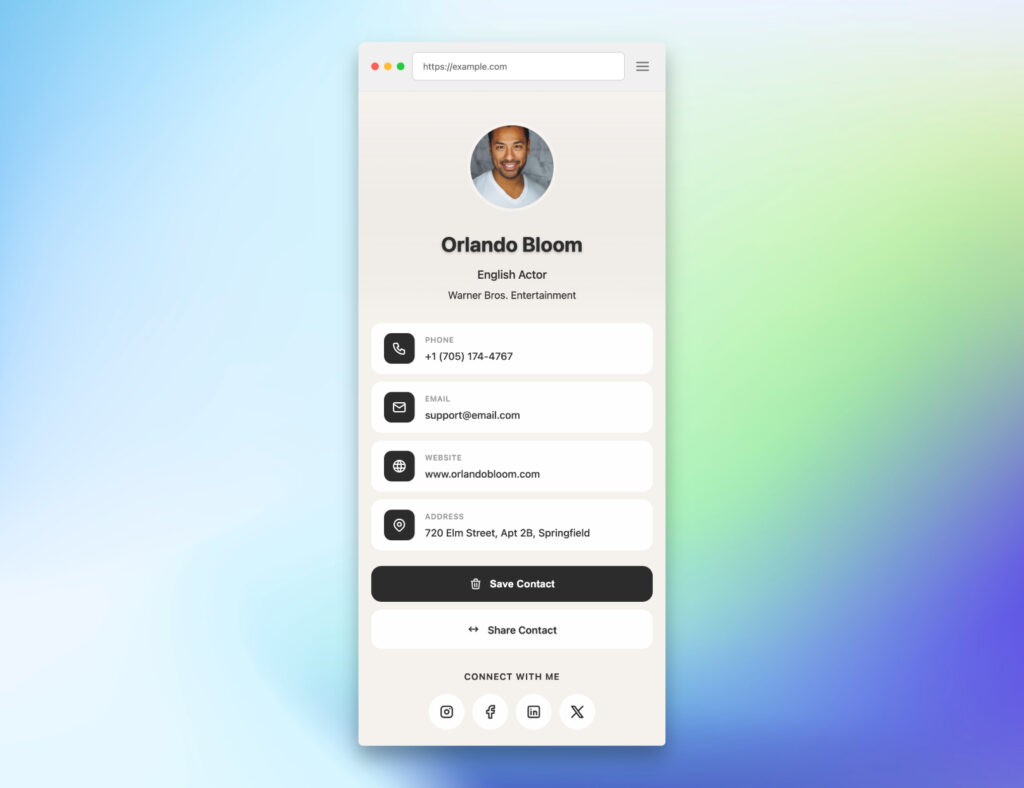
- Profile Picture: Upload a professional headshot to add a human touch and help people put a face to the name.
This is what the saved contact will look like on a phone, complete with your photo and comprehensive details, making it much more memorable.
Step 3: Design and Generate Your QR Code
Once your information is locked in, you can design the QR code that will deliver your new digital business card. OpenQR allows you to customize its appearance to match your brand. You can add your company logo, change the colors, and even modify the shape of the pattern.
When you’re happy with the design, generate the code. You can then download it in various formats (PNG, SVG) to use on business cards, presentations, or your email signature.
Ready to start? You can find a dedicated tool when you create your contact QR code on OpenQR. The specialized generator makes the entire process incredibly smooth.
Designing a QR Code That Gets Noticed
Once you’ve packed all your professional details into a vCard, the next job is getting it into people’s hands. A standard black-and-white QR code will get the job done, but a custom-designed QR code becomes an extension of your brand it catches the eye and practically begs to be scanned.
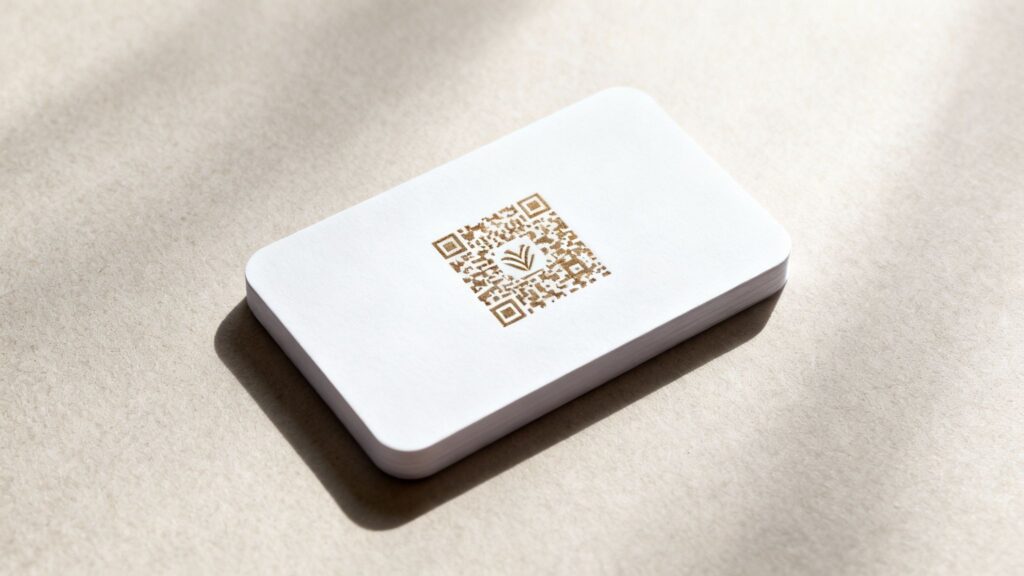
This is where you can really have some fun with OpenQR’s design tools. They let you turn a generic, functional square into a memorable piece of marketing that reinforces who you are. A well-designed code doesn’t just work; it signals professionalism and builds trust before the phone camera even opens.
Embedding Your Brand with a Logo
One of the quickest and most powerful ways to customize your vCard QR code is to drop your company logo right in the center. It’s a simple move that instantly connects the code to your brand, making it feel official and trustworthy.
Getting this done in OpenQR is a breeze:
- Upload Your Logo: Just grab your logo file (a PNG with a transparent background works best) and upload it directly in the design studio.
- Automatic Adjustment: The platform is smart enough to resize and position the logo perfectly, making sure the QR code stays scannable.
- Instant Recognition: The final product is a code that’s undeniably yours, whether it’s on a business card or a trade show banner.
This small touch makes a huge psychological difference. To see it in action, you can learn more about how to create a QR code with a logo on OpenQR.
Customizing Colors and Shapes for a Unique Look
Why stop at the logo? You can tweak the entire look and feel of your QR code to match your brand’s aesthetic. Forget the boring black and white; your brand has a specific color palette, and your QR code should, too.
OpenQR gives you full control over these creative elements. Here are a few ideas to play with:
- Brand Colors: Swap out the black for your primary brand color. The golden rule here is contrast. A dark navy on a white background? Perfect. A pale yellow on white? You’re just asking for scan errors.
- Pattern Shapes: You don’t have to stick with squares. You can change the individual data “pixels” to dots or diamonds for a unique vibe.
- Corner Styles: Even the three big squares in the corners (the “finder patterns”) can be customized to circles or rounded squares.
The point of all this isn’t just to make a pretty QR code. It’s to make it an integrated part of your branding. A code that looks like it belongs on your marketing materials is one that people will trust and actually use.
While OpenQR is a fantastic choice, it’s always smart to see what else is out there. Different platforms offer different bells and whistles, so it’s worth exploring some of the top QR code generators to find the perfect fit for your needs.
Static vs. Dynamic QR Codes: Which One Is Right for You?
When you’re ready to create a vCard QR code with OpenQR, you’ll hit a critical fork in the road: should you go with a static or a dynamic code? They might look identical, but how they work under the hood is completely different.
A static QR code is like a tattoo—your contact info is permanently encoded into the pattern. Once it’s made, it’s set in stone. If you change your phone number, the QR code becomes obsolete.
A dynamic QR code, however, is much smarter. It holds a short web link that points to your vCard profile hosted on your OpenQR dashboard. This means you can log in and update your details—change your email, add a new social profile—anytime. The QR code itself never changes.
The Real-World Advantage of Going Dynamic
Let’s put this into a real-world scenario. You just ordered 500 business cards with your new vCard QR code. A week later, you get a new direct line at work.
If you used a static code, all 500 of those cards are now out of date. But if you chose a dynamic code, you just log into your OpenQR account, update your phone number, and you’re done. Every card is still perfectly functional.
This flexibility is why most professionals and businesses opt for dynamic codes. Your career isn’t static, so why should your most important networking tool be?
The true power of a dynamic QR code isn’t just about convenience—it’s about making your physical marketing materials sustainable. It ensures your business cards and banners stay relevant long after they’re printed.
A Head-to-Head Comparison
To help you decide, let’s lay it all out. Seeing the features side-by-side makes it clear which option aligns with professional goals.
Static vs Dynamic vCard QR Codes
This table breaks down the core differences between the two types of codes.
| Feature | Static QR Code | Dynamic QR Code |
|---|---|---|
| Editability | No. The data is permanent once generated. | Yes. You can update the linked vCard information anytime. |
| Scan Tracking | No. You cannot track scan data. | Yes. You can see how many people scanned your code, where, and when. |
| Lifespan | Limited. Becomes obsolete if information changes. | Unlimited. The code remains valid as long as your account is active. |
| Use Case | Best for permanent information, like a Wi-Fi password. | Ideal for business cards, marketing, and professional networking. |
| Cost | Typically free to generate. | Often requires a subscription for advanced features like analytics. |
If you ever plan on changing jobs, updating your details, or simply want to know if your networking efforts are paying off, a dynamic code is the only way to go. The ability to track scan analytics alone is a game-changer.
Putting Your vCard QR Code to Work
Alright, you’ve created a polished vCard QR code. Now it’s time to put it to work. The goal is simple: get your QR code in high-visibility spots where people will actually want and be able to scan it.
The most obvious place is your business card, but that’s just the beginning. The real magic happens when you weave your QR code into every part of your professional life, both physical and digital.
High-Impact Digital Placements
Your digital footprint is full of prime real estate for your vCard QR code. These placements work for you around the clock, turning passive viewers into real connections.
- Email Signature: This is a no-brainer. Every email you send becomes a networking opportunity.
- Presentation Slides: Place your QR code on your final “Thank You” or “Q&A” slide. Your audience can just point their phones at the screen.
- Online Portfolio or Resume: A recruiter or potential client is already looking at your work—make it dead simple for them to save your contact info.
- Social Media Profiles: Use your QR code in your header image or a pinned post on professional networks like LinkedIn.
This isn’t just a gimmick; it’s about adapting to how we exchange information now. The global market for virtual cards is projected to skyrocket from roughly USD 19 billion in 2024 to over USD 73 billion by 2031. To explore more data on this digital shift is to understand its importance.
Creative Physical Use Cases
Now, let’s think beyond the business card. Where else does your professional identity show up in the real world?
Here are a few ideas that work incredibly well:
- Trade Show Banners and Displays: A big, bold QR code on your booth banner lets people grab your details without even having to stop.
- Stickers on Laptops or Company Gear: A durable sticker with your vCard QR code is a natural conversation starter.
- Event Nametags: Add a small but scannable QR code to your nametag. The other person can discreetly scan it while you’re shaking hands.
- Product Packaging or Invoices: Provide a direct line for customers to save a contact for support or future orders.
The ultimate goal is to remove every possible barrier to connection. The easier you make it for someone to save your contact information, the more likely they are to actually do it—and, more importantly, to follow up.
By getting creative with placement, you turn your vCard QR code from a static image into an active networking machine. OpenQR makes generating the code easy; your strategy is what will make it successful.
A Few Lingering Questions About vCards
Even with a simple process, a few questions tend to pop up. Let’s tackle some of the most common ones.
Will My vCard Work on All Phones?
Yes, absolutely. The vCard format (.vcf file) is a universal standard, like a PDF for contact info. It works seamlessly across iPhones, Android devices, and even desktop email clients. When someone scans your QR code, their phone’s contact app immediately recognizes the file and prompts them to save your info.
- iPhones & iPads: Instantly pull up a “New Contact” screen with all your details filled in.
- Android Phones: Use the default contacts app (like Google Contacts) to import your data.
- Desktop Email Clients: Programs like Microsoft Outlook can open and import .vcf files without a problem.
Can I Put My vCard on My Existing Business Cards?
You bet. Adding a vCard QR code is one of the smartest ways to modernize paper business cards. It bridges the gap between physical and digital.
A Quick Tip from Experience: When you print a QR code, make sure it’s at least 1 inch by 1 inch. Also, stick to high contrast like a dark code on a light background is your most reliable bet.
What Happens If My Contact Information Changes?
This highlights the critical difference between static and dynamic QR codes.
- If You Used a Static QR Code: The information is baked into the code. If your phone number changes, you have to create a new vCard and generate a new QR code. All business cards with the old code are now outdated.
- If You Used a Dynamic QR Code: With a dynamic code from a platform like OpenQR, you just log into your account, edit the contact details, and hit save. The QR code immediately starts sharing your updated vCard. No reprinting, no fuss.
How Can I Create a vCard with a Photo?
Adding a professional headshot helps people remember who you are. With a generator like OpenQR, it’s incredibly easy. As you’re filling out your details, you’ll see an option to upload an image. Just choose a good-quality photo, and the tool embeds it right into the vCard file. When someone saves your contact, your picture will show up next to your name in their phone’s address book.
Ready to build a powerful, dynamic vCard that can keep up with your career? With OpenQR, you can create, customize, and manage your digital business card in minutes. Start your free trial and see what the future of networking looks like.