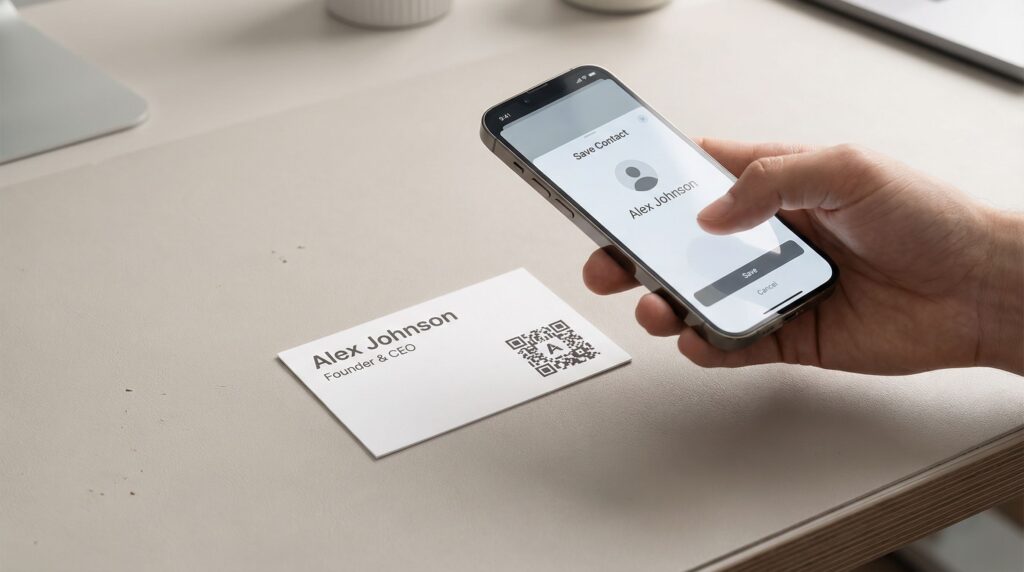
Every year, 100 billion paper business cards are printed worldwide. Within a week, 88% of them end up in the bin (Supercode, 2026). The information gets lost, the contact goes cold, and the card that cost you money and effort sits forgotten at the bottom of someone’s jacket pocket.
A QR code on your business card solves this in one scan. Instead of hoping the recipient manually types your number into their phone, they scan and your contact details, website, portfolio, or social profiles save instantly. No typing errors, no lost cards, no missed connections.
This guide is for professionals, freelancers, sales teams, and business owners who want to make their business cards work harder. You will learn exactly which type of QR code to use, how to create and design it in under 5 minutes, and how to track who is scanning it.
- Business card QR codes have a 34% scan rate, nearly 3 times higher than advertising QR codes (Qrlytics, 2026).
- 88% of paper business cards are discarded within a week. A QR code saves your contact details digitally on first scan.
- The best QR type for business cards is a vCard QR code, which lets recipients save your full contact details to their phone in one tap.
- Always use a dynamic QR code. Job title changed? New phone number? Update it instantly without reprinting your cards.
- Companies using QR code business cards report 30% higher follow-up rates and 90% cost reduction vs traditional printed cards (Wave Connect, 2026).
- 40% of manually entered business card data contains at least one error. QR eliminates this entirely (Qrlytics research).
- OpenQR’s vCard QR code generator creates a trackable, branded, always-editable code in under 5 minutes. Free 14-day trial.
- Why QR Code Business Cards Are the Standard in 2026
- Which Type of QR Code Should You Use?
- Why Dynamic Is the Only Sensible Choice
- How to Create a Business Card QR Code with OpenQR
- Design Tips: Making Your QR Code Work on a Business Card
- Where to Place the QR Code on Your Card
- Tracking Who Scans Your Card
- Use Cases by Profession
- 4 Common Mistakes to Avoid
- Frequently Asked Questions
1. Why QR Code Business Cards Are the Standard in 2026
The global digital business card market is valued at $238.75 million in 2026, growing at 12.2% annually and projected to reach $680 million by 2035 (Wave Connect, 2026). That growth is being driven by a simple shift: professionals now expect instant digital access when they receive a business card, not a card they have to photograph or type into their phone later.
The 34% scan rate is particularly telling. Business card QR codes have a 34% scan rate compared to just 12% for advertising QR codes because the context is entirely different. When someone receives your business card, they are already interested in you. They chose to take the card. That intent converts into scans at nearly three times the rate of a code on a poster or flyer.
The cost argument is equally compelling. Companies using digital card solutions report a 90% cost reduction over traditional printed cards and 30% higher follow-up rates. For sales teams and professionals who network regularly, this is a meaningful operational improvement.
The 2026 context: In 2026, QR codes are no longer seen as a neutral action by users. Clear branding, predictable behavior, and well-maintained destinations help reduce hesitation. A branded QR code on a business card, pointing to a professional vCard or portfolio, is immediately trustworthy. An unbranded black-and-white code is not.
2. Which Type of QR Code Should You Use?
There are four meaningful QR code types for business card use. Each serves a different professional need.
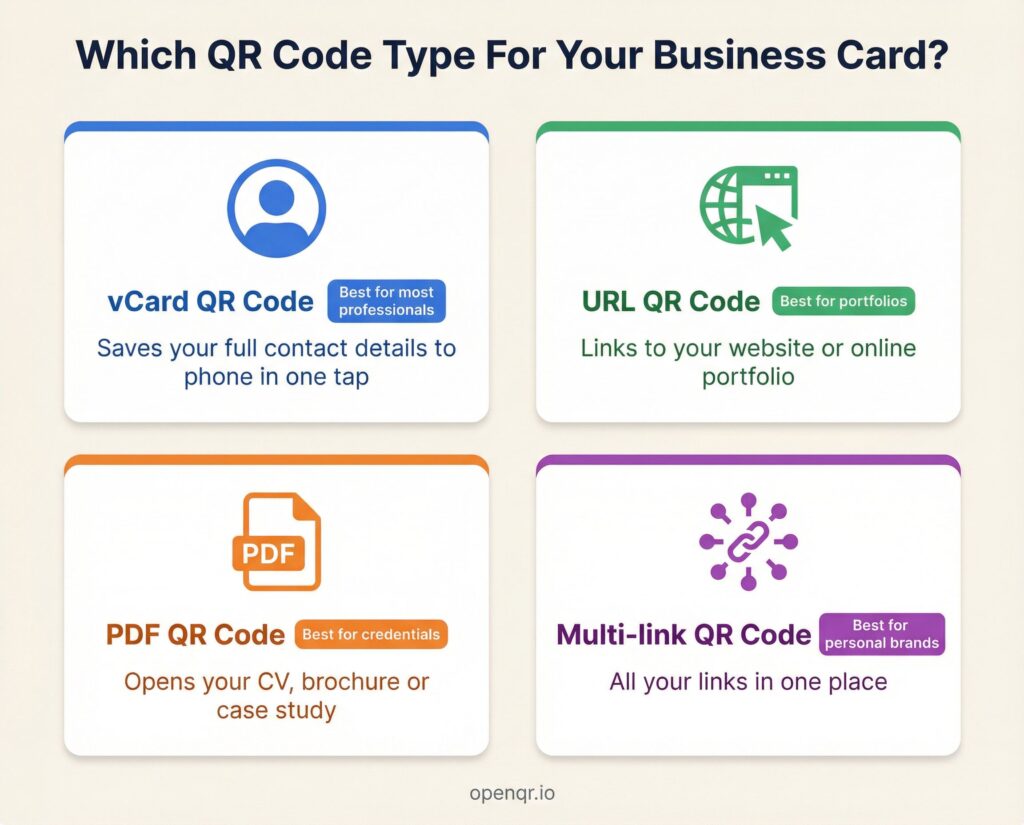
| QR Type | Best For | What the Recipient Gets | Can Update After Print? |
|---|---|---|---|
| vCard | Most professionals | One-tap contact save to phone | Yes (dynamic) |
| URL | Portfolios, websites | Opens your chosen web page | Yes (dynamic) |
| CVs, brochures, credentials | Opens your document | Yes (dynamic) | |
| Multi-link | Personal brands, creators | All your links in one place | Yes (dynamic) |
For most professionals, vCard is the right starting point. It removes the maximum amount of friction – the recipient does not need to visit a website, download anything, or decide where to look. They scan, tap Save Contact, and you are in their phone. If you later want to add a portfolio link, update the vCard to include your website URL.
3. Why Dynamic Is the Only Sensible Choice
Business cards have a longer lifespan than almost any other printed marketing material. A well-designed card gets kept, passed on, and referenced months or years after the original meeting. That longevity is exactly why you must use a dynamic QR code.
A static QR code on a business card encodes your destination permanently at creation. The moment you change your job title, phone number, email, or company – which will happen – every card you have ever handed out either needs reprinting or carries outdated information. With a static code, you cannot change what it points to.
A dynamic QR code from OpenQR encodes a short redirect URL. You update your vCard, change your website, or swap your LinkedIn URL in the OpenQR dashboard. Every card that exists in the world – in wallets, drawers, desk organizers – instantly reflects the update. No reprinting. No outdated contacts.
| Scenario | Static QR Code | Dynamic QR Code |
|---|---|---|
| You change job titles | All cards show old title or break | Update vCard in dashboard instantly |
| You move to a new company | Every existing card is outdated | Update in 30 seconds, no reprint |
| You get a new phone number | Manually update all card holders | One dashboard edit, all cards updated |
| You want to track scan activity | Not possible | Full analytics: who scanned, when, where |
| You want to know your follow-up rate | Not possible | See scan data after every event or meeting |
Dynamic QR codes (64.92% market share) are exactly what makes digital business cards work. You update your job title or phone number, and every QR code you have ever shared automatically reflects the change. That is the real advantage over paper.
4. How to Create a Business Card QR Code with OpenQR
Go to openqr.io and start the free 14-day trial. No credit card needed. From the dashboard, click Create New QR Code and select vCard (for contact saving) or URL (for a website or portfolio link).
For a vCard code: enter your full name, job title, company name, phone number, email address, website, and any social profile URLs. Include everything you would want a new contact to have. This is your digital first impression – make it complete. You can add or update any of these fields at any time after printing.
Use OpenQR’s design editor to add your photo or company logo in the center of the code, apply your brand colors to the dots and corner elements, and add a subtle frame. For business cards, keep the design clean – high contrast and recognizable. A code that blends into your card design is not a code people will scan.
Scan it with both iOS and Android. Confirm the vCard prompt appears correctly, all fields show the right information, and the Save Contact button works as expected. Fix any issues before you order 500 cards.
Always download your QR code as SVG for print. SVG is vector-based and scales without any loss of quality, whether your code is 1.5cm or 5cm on the card. Hand the SVG file directly to your printer or paste it into your card design in Canva, Adobe Illustrator, or your design tool of choice.
5. Design Tips: Making Your QR Code Work on a Business Card
A business card has very limited space and your QR code needs to compete with your name, contact details, and brand identity. Here is how to make it work visually without sacrificing scan reliability.
Size and placement rules
- Minimum size: 1.5cm x 1.5cm for a business card QR code. Any smaller and scanning becomes unreliable.
- Ideal size is 2cm x 2cm if space allows. Larger codes scan faster and more reliably in dim lighting.
- Always maintain a quiet zone (clear border) of at least 4 modules around the code. Never clip the edges.
Color and contrast
- Dark code on a light background is the safest combination for reliable scanning.
- You can use brand colors on the dots, but the contrast ratio between code and background must remain high.
- Never place a QR code over a photograph or textured background. It will fail to scan.
- Avoid reversing out (light code on dark background) unless you have tested it thoroughly. Many scanners struggle with this.
Logo in the center
OpenQR lets you embed a logo or photo in the center of the code. This is worth doing for two reasons. First, it makes the code visually recognizable and trustworthy. Second, QR codes include built-in error correction that allows up to 30% of the pattern to be obscured while still scanning correctly. A small logo within that threshold does not affect scan reliability.
Frame and call to action
Add a subtle label below the code: “Scan to save contact” or “Scan for my portfolio”. This removes any ambiguity about what the code does. On a business card, the context is obvious, but a one-line prompt increases scan rates even here.
Test your final printed card design before ordering the full run. Print one copy at home or at a local printer, scan it in normal and dim lighting, and confirm it works. A QR code that looks fine on screen can fail at print if the colors reduce contrast too much or the size is slightly smaller than intended.
6. Where to Place the QR Code on Your Card
| Position | Works Well For | Notes |
|---|---|---|
| Back of card, bottom right | Most professional cards | Most common and expected placement. Clean and unobtrusive. |
| Back of card, centered | Cards using QR as the hero element | Works if the back is otherwise minimal. Makes QR the focus. |
| Front of card, corner | Digital-first professionals | Signals tech-savviness. Keep small so it does not dominate the front. |
| Back, paired with NFC chip area | Dual NFC and QR cards | Lets recipients choose their preferred method to connect. |
The most common and practical placement is the back of the card, bottom right corner. It is where people expect to find supplementary information, it does not compete with your name and contact details on the front, and it leaves the rest of the back available for a tagline, logo, or simply clean white space.
7. Tracking Who Scans Your Card
This is the feature most professionals do not realize they have access to. Because you are using a dynamic QR code from OpenQR, every scan is logged in your analytics dashboard.
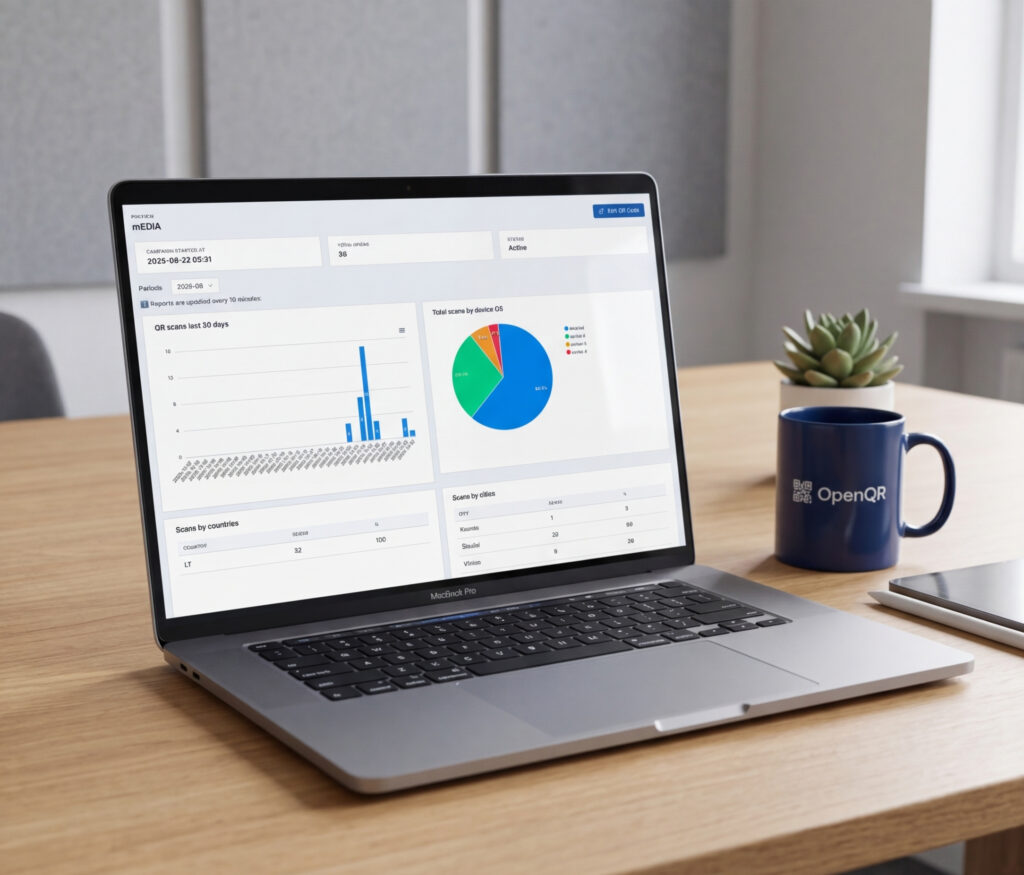
After a networking event, conference, or sales meeting, you can open your OpenQR dashboard and see exactly how many people scanned your card, when they scanned it, which city they were in, and what device they used. This data tells you something a paper business card never could: whether your card actually led to engagement.
What you can learn from your scan data
- Post-event validation: You handed out 40 cards at a trade show. 18 were scanned within 48 hours. That 45% engagement rate is meaningful data about the quality of your connections and the effectiveness of your pitch.
- Geography: If you network in multiple cities, location data tells you which markets engage most with your materials.
- Time of scan: Most scans happen within 2 hours of a meeting or within 24 hours of the event. A scan 3 weeks later often means the card resurfaced – the contact looked you up again.
- Device type: Knowing your contacts use primarily iOS vs Android helps you optimize your landing page or vCard format.
For sales professionals: set a reminder to check your OpenQR dashboard 48 hours after every major meeting or event. Any contacts who scanned your card in that window are warm leads who showed active interest. Follow up with them first.
8. Use Cases by Profession
| Profession | Best QR Type | What to Link To |
|---|---|---|
| Sales professional | vCard | Full contact details so prospects save your number immediately |
| Freelance designer / creative | URL or PDF | Online portfolio or PDF case study document |
| Consultant | PDF or vCard | Credentials PDF or contact details with LinkedIn URL in vCard |
| Real estate agent | URL | Active listings page or personal website with current properties |
| Photographer / videographer | URL | Portfolio website or Instagram business profile |
| Recruiter | vCard or URL | Contact details or LinkedIn profile with open roles listed |
| Conference speaker | Multi-link or URL | Talk resources page: slides, links mentioned, contact form |
| Startup founder | URL | Company website, pitch deck, or investor information page |
| Healthcare professional | vCard or URL | Contact details or practice booking page |
9. Four Common Mistakes to Avoid
Using a static QR code
A static code on a business card is a liability. Your details will change. When they do, the code either breaks or continues pointing to outdated information. The cost of a dynamic code from OpenQR ($5/month for up to 10 codes) is lower than a single reprint run. Use dynamic from the start and you will never need to reprint because of a QR code.
Making the code too small
Space is limited on a business card, but a QR code smaller than 1.5cm x 1.5cm is unreliable in real-world scanning conditions. Low light, older phone cameras, and slight print misalignment all reduce scan success at small sizes. If space is very tight, consider placing the code only on the back of the card where you have more room to work with.
Low contrast design
Custom colors look great until they fail to scan. A dark blue code on a navy card background, or a light grey code on a white card, may look elegant but will produce consistent scan failures. Always check contrast ratio before finalizing your card design. If in doubt, keep the code black on white and let the logo in the center carry your branding.
Linking to a page that is not mobile optimized
Business cards get scanned on phones, always. If your QR code links to a website that is not mobile optimized, the first impression of your digital presence is a terrible one. Before printing, visit your destination URL on your own phone. If you need to zoom or scroll horizontally to read it, fix the page first.
Frequently Asked Questions
What is the best QR code type for a business card?
For most professionals, a vCard QR code is the best choice. It encodes your full contact information and lets recipients save you to their phone contacts in a single tap, without typing anything. If your work is best shown visually (design, photography, development), a URL QR code linking to your portfolio may serve you better.
Can I update my business card QR code after printing?
Yes, if you used a dynamic QR code. With OpenQR, you update your vCard details or change the destination URL in the dashboard and every existing card is automatically updated. If you used a static QR code, the destination is permanent and cannot be changed.
Does a QR code on a business card look professional?
Yes, when done well. A branded QR code with your logo embedded and a clean frame looks intentional and modern. In 2026, it is expected by many professionals, especially in tech, creative, and sales contexts. The key is design quality – a well-placed, branded code adds professionalism. A plain black-and-white code stuck in an awkward corner without any label does the opposite.
Will everyone know how to scan a QR code?
Scanning has become second nature for the vast majority of smartphone users in 2026. 102.6 million US consumers are projected to scan QR codes in 2026 and around 84% of mobile users worldwide have scanned a QR code at least once. For the small percentage who have not, a one-line label on the card (“Point your phone camera at this code”) removes any confusion.
Do I need a website to use a vCard QR code?
No. A vCard QR code encodes your contact details directly – or links to a hosted vCard file that requires no website from you. OpenQR hosts everything. The recipient scans, gets the Save Contact prompt on their phone, and your details are saved. No website visit required.
How many scans can I get on one business card QR code?
OpenQR does not limit scan counts on dynamic QR codes. You can hand out thousands of cards and every scan will work, every one will be tracked, and there are no caps or overages.
Create Your Business Card QR Code Today
Build a branded, trackable vCard QR code in under 5 minutes. Update your details any time without reprinting. Free 14-day trial, no credit card required.