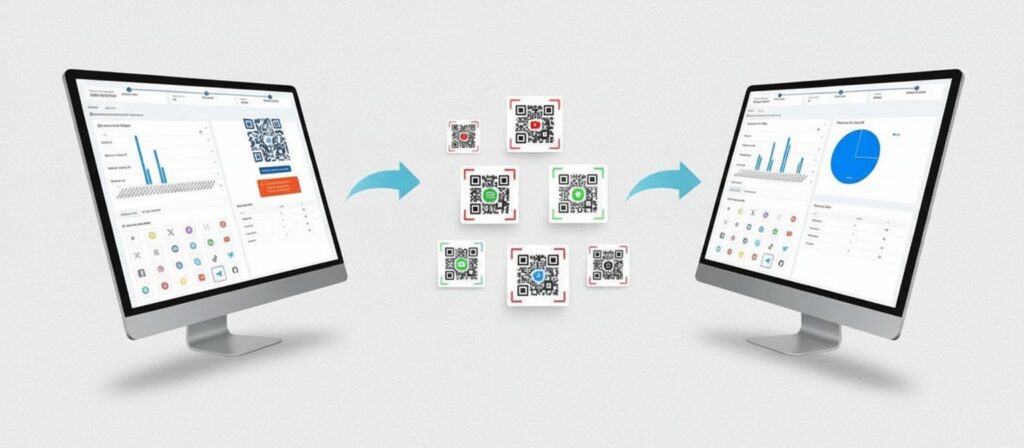
Reprinting 500 flyers costs between $150 and $400. Reprinting table tents, packaging inserts, or event signage costs even more. And it all happens because a single URL changed.
If you’ve been there, this guide is for you.
This article is for small business owners, marketers, restaurant operators, and event organizers who use printed materials with QR codes – and need the freedom to update them without starting over.
The good news: there’s a type of QR code that stays permanently editable after printing. It’s called a dynamic QR code, and once you understand how it works, you’ll never create a static one for print again.
In this guide, you’ll learn:
- Why standard QR codes can’t be changed after printing
- How dynamic (editable) QR codes work
- How to create one in under 3 minutes with OpenQR
- How to update the destination after your materials are printed
- The best use cases where editable QR codes save time and money
⚡ TL;DR – Key Takeaways
- Standard static QR codes cannot be edited after printing – ever.
- Dynamic QR codes work via a redirect URL you control. Change the destination anytime from your dashboard.
- Dynamic QR codes are used in over 79% of personalized business campaigns in 2025 (QR Tiger).
- OpenQR lets you create your first dynamic QR code free – no credit card required, codes never expire.
- Editing a dynamic code does not reset your scan analytics or require a new code.
Table of Contents
- Why You Can’t Edit a Regular QR Code
- What Is an Editable (Dynamic) QR Code?
- Static vs Dynamic QR Codes: Key Differences
- Step-by-Step: How to Create an Editable QR Code
- How to Edit Your QR Code After Printing
- What Happens to Analytics When You Edit?
- Best Use Cases for Editable QR Codes
- Pre-Print QR Code Checklist
- Tips to Get More Scans
- Frequently Asked Questions
1. Why You Can’t Edit a Regular QR Code
A standard QR code is a visual encoding of fixed data – most often a URL. That destination address is permanently baked into the pixel pattern at the moment of creation. When someone scans it, their phone decodes the pattern directly into that URL. There’s no server in the middle, no redirect, no way to intercept or change the outcome.
If the destination URL moves, gets deleted, or needs updating, the printed QR code is permanently broken. Your only option is to generate a new code and reprint everything carrying the old one.
According to a 2025 survey by Uniqode, over 40% of businesses have had to reprint materials because of an outdated or broken QR code. For campaigns using product packaging, restaurant menus, or outdoor signage, this reprinting cost can quickly exceed the original print budget.
Dynamic QR codes eliminate this problem entirely.
2. What Is an Editable (Dynamic) QR Code?
A dynamic QR code – sometimes called a changeable QR code or modifiable QR code – works differently from a static one. Instead of encoding your final destination URL directly, it encodes a short redirect URL hosted on a server you control.
When someone scans the code, their phone is sent to that short URL first, which instantly redirects them to your actual destination. The QR code pattern itself never changes. But you can update where the redirect points – any time, from any device – through your OpenQR dashboard.
Think of it like a forwarding address. Your printed QR code (the house number) stays the same. But you can redirect your mail (the destination) anywhere, any time.
With a dynamic QR code you can:
- Update the destination URL unlimited times without reprinting
- Swap out linked PDFs, menus, files, or pages instantly
- Track scan analytics: location, device type, time of scan
- Pause, redirect, or repurpose a QR code between campaigns
- Reuse the same printed code for completely different purposes
Dynamic QR codes also produce a cleaner, less dense pattern than static ones – because they only encode a short redirect URL. This means they scan faster and more reliably, especially on lower-quality prints.
3. Static vs Dynamic QR Codes: Key Differences
| Feature | Static QR Code | Dynamic QR Code |
|---|---|---|
| Editable after printing | ❌ No | ✅ Yes – unlimited edits |
| Scan tracking / analytics | ❌ No | ✅ Yes – location, device, time |
| Works without an account | ✅ Yes | Requires a tool (e.g. OpenQR) |
| Code density / scannability | Lower (more data encoded) | Higher (only short URL encoded) |
| Expiry | Never (but destination may break) | Never (OpenQR codes stay active) |
| Best for | Fixed info (WiFi, personal contact) | Marketing, menus, campaigns, packaging |
| Cost | Free | Free trial → from $5/month (OpenQR) |
| Best for print campaigns | ❌ | ✅ Always use dynamic |
Bottom line: For any QR code you plan to print and distribute, dynamic is the only sensible choice. The ability to update, track, and reuse a single code saves far more than the small monthly cost of a QR code tool like OpenQR.
4. Step-by-Step: How to Create an Editable QR Code
Creating an editable QR code with OpenQR takes under 3 minutes. Here’s exactly how:
Step 1: Sign Up for OpenQR (Free – No Credit Card Needed)
Go to openqr.io and click “Try FREE trial.” You get 14 days full access with no payment required.
Step 2: Choose Your QR Code Type
From the dashboard, select what you want your QR code to link to. OpenQR supports all major types:
- URL – any webpage
- PDF – document, menu, catalog, or brochure
- vCard – digital business card with photo, social links, and contact info
- WiFi – shares a network name and password
- Location – opens Google Maps to a specific address
- Phone / SMS / Email – triggers direct communication
Step 3: Enter Your Destination
Paste in the URL or upload the file you want the QR code to link to. This is your starting destination – you can change it at any time after printing.
Step 4: Design Your QR Code
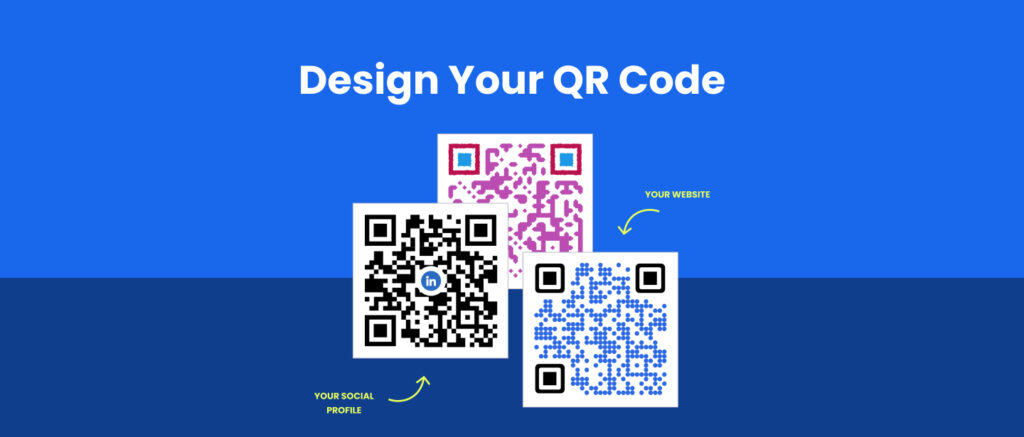
Branded QR codes with a logo and custom colors get up to 80% more scans than plain black-and-white codes (Scanova, 2025). OpenQR’s design editor lets you:
- Add your logo in the center
- Apply your brand colors to dots and background
- Choose a frame with a call-to-action (“Scan to view menu,” “Scan for offer”)
- Select a custom dot pattern that fits your visual identity
Step 5: Download in the Right Format
| Format | Best For |
|---|---|
| SVG | All print materials – scales infinitely without quality loss |
| PNG (high-res) | Digital use, email, social media |
For anything physically printed – always use SVG. Never use a low-resolution PNG for print.
Step 6: Print and Deploy
Your QR code is ready. Scan tracking begins immediately – your OpenQR dashboard shows real-time analytics from the very first scan.
5. How to Edit Your QR Code After Printing
When your destination changes – new menu, updated URL, seasonal campaign – here’s all you do:
- Log in to your dashboard at dashboard.openqr.io
- Find the QR code you want to update
- Click Edit and change the destination URL or swap the PDF
- Click Save
The update is live immediately. Every future scan goes to the new destination – no reprinting, no new QR code, no downtime.
💡 Real-world example: A restaurant prints 80 table tents in March linking to their spring menu PDF. In June, they upload a summer menu to OpenQR and hit save. All 80 table tents now point to the updated menu instantly. Cost of update: $0. Time taken: 90 seconds.
6. What Happens to Analytics When You Edit?
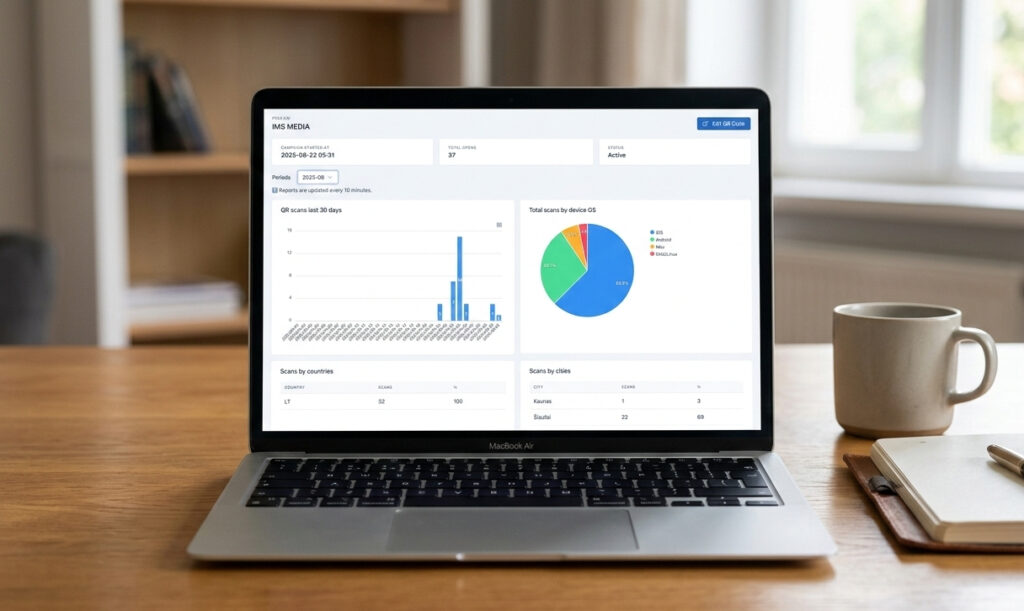
Editing your QR code’s destination does not reset or affect your scan analytics. Your historical scan data stays intact across every destination change. This means:
- Your total scan count continues accumulating
- You can compare scan volume before and after a content update
- Location, device, and time-of-scan data all remain linked to the same code
This continuity makes it possible to measure campaign performance across seasons and content changes – all from a single QR code you printed once.
7. Best Use Cases for Editable QR Codes
Restaurants & Hospitality
Replace printed menus with a PDF qr code generator. Update dishes, prices, and specials in real time. Never reprint table tents again.
Product Packaging
Link to how-to videos, recipes, or product registration. Update post-purchase content without touching the label or reprinting a single unit.
Events & Conferences
Print QR codes on tickets and posters. Update the linked schedule or speaker bios right up to – and during – the event.
Business Cards & Networking
Encode a vCard or personal website URL. Change jobs or rebrand – your printed card stays valid forever.
Hotels & Resorts
Replace room service booklets with a QR code linking to a digital catalog. Update seasonal offers without reprinting.
Marketing Campaigns
Run rotating promotions on the same printed flyer. Swap landing pages between campaigns and eliminate reprint waste entirely.
8. Pre-Print QR Code Checklist
Before sending anything to print, run through this checklist. It takes 5 minutes and can save hundreds in reprinting costs.
Setup
- Created as a dynamic QR code (not static)
- Destination URL is live and loads correctly
- QR code is linked to your OpenQR account (so you can edit it later)
Design
- Logo added and centered (if applicable)
- Brand colors applied – confirmed high contrast against background
- Frame includes a clear call-to-action (“Scan to view menu,” “Scan for offer”)
- Downloaded in SVG format for print
Testing
- Scanned successfully on an iPhone
- Scanned successfully on an Android device
- Destination page opens correctly on mobile
- QR code is at least 2cm × 2cm in the print layout
After Printing
- Analytics confirmed live in OpenQR dashboard
- Team knows where to log in to update the destination if needed
9. Tips to Get More Scans
1. Always include a call-to-action
A QR code with no label gets ignored. “Scan to view today’s menu” or “Scan for 10% off” tells people exactly what to expect.
2. Size matters
Minimum recommended print size is 2cm × 2cm. For outdoor signage, scale up – a bus stop poster needs at least 10–15cm.
3. High contrast always
Dark pattern on a light background scans fastest. Avoid placing QR codes over photography or low-contrast backgrounds.
4. Test before you print – every time
Scan on both iOS and Android before going to print. This single step prevents the vast majority of QR code failures.
5. Use analytics to optimize placement
Check your OpenQR scan data weekly. Let data guide your decisions – not guesswork.
10. Frequently Asked Questions
Can I really edit a QR code after it’s been printed?
Yes – but only if it was created as a dynamic QR code. Dynamic codes redirect through a short URL you control via a dashboard. Static QR codes cannot be edited after creation under any circumstances.
What happens to my scan history when I update the destination?
Nothing changes. Editing the destination URL in OpenQR does not affect historical scan data. Your total scan count, location data, and device breakdown all remain intact after any update.
Will my printed QR code expire if I cancel my OpenQR plan?
With OpenQR, QR codes never expire – even after a subscription ends. Dynamic codes briefly display a “Powered by openqr.io” message before redirecting. The codes remain fully functional.
How many times can a dynamic QR code be scanned?
OpenQR dynamic QR codes have no scan limit. Your code can be scanned millions of times with no additional QR code cost and no degradation in performance.
Can I change the type of content a QR code links to?
Yes. You can update the destination URL or swap a linked PDF at any time. The QR code type is set at creation, but destination content can be changed as often as needed.
Is a dynamic QR code secure?
Yes. Only the account holder with valid login credentials can edit the destination. The editing dashboard is never publicly accessible.
Start Creating Editable QR Codes Today
No technical skills needed. No credit card for the free trial. Your first editable QR code can be live in under 3 minutes.