A WiFi QR code generator connects guests to your network instantly
A WiFi QR Code lets visitors connect to your network with one scan – no asking for passwords, no typing complicated characters, no frustrated guests. The scan automatically enters your network name and password, connecting them in seconds. Whether you’re running a café, hotel, office, rental property, or retail store, a WiFi QR Code eliminates the most common question: “What’s the WiFi password?”
With OpenQR, you can create branded WiFi QR codes that match your space. Support for WPA, WPA2, WPA3, and open networks means it works with any setup. Customize colors and design to fit your brand, then download in print-ready formats. Perfect for table tents, wall signs, welcome cards, reception desks, or check-in materials. It’s seamless connectivity for your visitors and fewer interruptions for your staff.
No credit card required

Create your WIFI QR code in just 3 easy steps
Get your custom, trackable dynamic QR Code in under a minute. No design skills or technical knowledge needed – just add your link, style your code, and share it anywhere. It’s that easy!

Create your FREE account in seconds
No credit card needed – just sign up and get instant access to all features.
Try 14-day FREE trial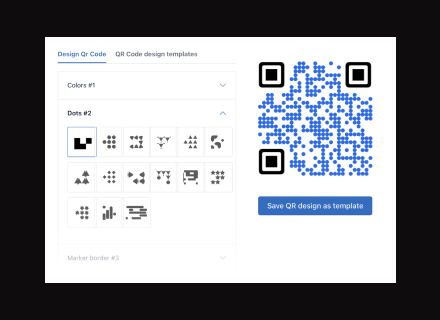
Customize for trust and recognition
Upload your logo, apply your brand colors, and choose a layout.
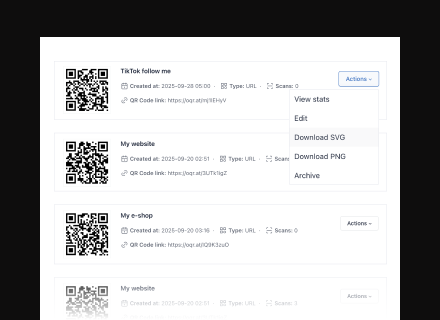
Download and deploy your QR code
Export your code in high-quality SVG or PNG format.
How OpenQr helps you
Boost engagement and insights through dynamic, customizable QR codes.

Track every scan and optimize smarter
Know exactly when, where, and how your QR Codes are scanned. See device types, locations, and scan frequency — and use data to improve your campaigns and boost ROI.
Read more
Make every QR code uniquely yours
Customize your QR Codes with brand colors, logos, call-to-action text, and even creative frames or edges. Stand out, stay on-brand, and drive more engagement from every scan.
Read more
Update content anytime – even after printing
Dynamic QR Codes let you change your QR content at any time without needing to reprint. Perfect for long-term campaigns, evolving offers, or fixing mistakes on the fly.
Read moreNo credit card required
Where to put your WiFi QR code
Put your WiFi QR code where guests already look for the password. One scan connects them – no typing, no spelling out a long password, no front-desk queue.
Cafes and restaurants: seat guests faster
Place your WiFi QR code on every table, at the counter, and near the condiments. Guests scan, connect, and get back to their coffee. Print it on table tents, menu cards, or a small acrylic stand – anything that stays put and stays clean. Add a short line above the code: “Scan to join our WiFi.” Keep the code at eye level when seated, and add a second copy by the pickup counter for people waiting on orders. Update the network name or password any time without reprinting a single card. Create QR codes for restaurants.
Hotels and rentals: check-in without the call
Give guests the WiFi before they ask. Put your WiFi QR code in the welcome folder, on the back of the room key card, and on a small card beside the bed or desk. Guests arriving late scan and connect in seconds – no call to reception, no waiting for a reply. Add one copy in the lobby and one in each room. For longer stays, keep the code on a laminated card so it survives the whole visit. Change the password between seasons and the same printed code keeps working. Set up QR codes for hotels.
Offices and coworking: connect visitors on arrival
Stop repeating the guest network password. Put your WiFi QR code at the reception desk, in each meeting room, and on the wall of every shared workspace. Visitors scan and connect while they wait for their host. Add a second code for the guest network so staff devices stay on the private one. Print it on a simple sign with the network name above it, and place it at standing height. When you rotate the password, update the code – the signs on the wall stay exactly where they are.
Events and venues: one scan, no bottleneck
Long WiFi queues kill the mood. Put your WiFi QR code on entry signs, on the back of lanyards and badges, on table cards, and on the big screen during downtime. Guests scan once and stay connected all night. Print it large – a code on a distant sign needs to be readable from a few steps away. Add a short instruction line under it: “Scan to join event WiFi.” For multi-day events, keep the same code across all days and update it only if the network changes. Create QR codes for events.
Guest houses and Airbnbs: answer the WiFi question once
Guests ask about WiFi the moment they arrive. Put your WiFi QR code in the house manual, on the fridge, and on a framed card in each bedroom. They scan and connect without messaging you. Add the network name in plain text under the code so guests can check they joined the right one. Laminate the card so it lasts through every stay. When you change the router or the password, update the code and leave the printed card in place – no reprint, no new welcome pack.
Shops: keep customers browsing longer
Give shoppers a reason to stay. Put your WiFi QR code at the till, on fitting room mirrors, and near the entrance. Customers scan, connect, and keep browsing instead of leaving to save data. Print it on a small counter card with one clear line: “Free WiFi – scan to join.” Add a copy in any seating or waiting area. Keep the code visible but tidy – one card per spot beats a wall of stickers. Update the password whenever you need to, and the same printed cards keep working. Create QR codes for retail.
Static vs dynamic WiFi QR code
Choose the right code type before you print. A static WiFi QR code stores the network name and password inside the pattern. Change either one and the old code stops working – you print again. A dynamic WiFi QR code points to a short link you control. Change the network name or password in your dashboard and every printed code updates instantly. No reprinting. No new table cards. No new welcome folders. Use static codes for a network that never changes. Use dynamic codes for guest WiFi, rentals, events, and anywhere the password rotates. Compare static vs dynamic QR codes.
How to scan a WiFi QR code on iPhone and Android
No app needed. Open the camera, point it at the code, and tap the notification. Here is the exact path on each platform.
Scan a WiFi QR code on iPhone
- Open the Camera app.
- Point your iPhone at the WiFi QR code and hold steady.
- Tap the yellow WiFi notification that appears.
- Tap Join to connect.
No notification? Open Control Center, long-press the network panel, and check that WiFi is on. You can also scan from the Code Scanner in Control Center on newer iOS versions.
Scan a WiFi QR code on Android
- Open the Camera app or Google Lens.
- Point your phone at the WiFi QR code.
- Tap the WiFi link that pops up.
- Tap Connect to join the network.
On many Android phones you can also open Settings, go to WiFi, and tap the scan icon in the corner to read the code directly.
Samsung WiFi QR code
Open the Camera app and point it at the code, then tap the link. Or open Settings, tap Connections, then WiFi, and use the QR scan icon at the top of the list. On some Samsung models the scanner sits inside the WiFi menu rather than the camera.
Huawei WiFi QR code
Open the Camera app and point it at the code, then tap the link. If nothing appears, open Settings, tap WLAN, and use the scan icon to read the code. Huawei phones often scan WiFi codes from the WLAN screen rather than the camera.