A badge is the one piece of print that is worn by a person, scanned by strangers and carries that person’s name. That changes the questions. Size is rarely the problem, because a badge is flat and scanned from a handshake away. What goes wrong is what the code holds: one code for the whole room or one for each person, a check-in code anyone can photograph off a lanyard, a phone number that keeps working long after the event has ended. Those are the decisions to make before the badges go to print.
The benefits of using QR codes on badges
Everyone at an event is wearing the same piece of print at chest height for the whole day. That makes the badge the most looked-at surface in the building. A QR code on the badge turns it into the agenda, the venue map, the WiFi password and the feedback form, and it gives two people who have just met a way to swap details without typing. At a conference with sponsors, it is also the one placement every attendee carries into every session.
Outside events, a badge is how people check who they are talking to. A QR code on a staff or contractor ID badge can open a page that confirms the person works for you, and on a shop or hotel name tag it can open a review page for the person who just helped. A dynamic QR code makes both of these manageable: the badge stays printed, the page behind it can change or be switched off, and every scan is counted.
What a badge QR code has to handle
A lanyard that turns the badge round
Badges on lanyards spin and settle face to the chest about half the time. A code printed on one side is missing from half the room. Print the shared code on both sides.
Codes that are not all the same
The agenda link is the same for everyone. A contact card or an entry code is different for every person. The two kinds are produced differently and belong in different places on the badge.
A name and a phone number on public display
Anything in a badge code can be scanned by anyone within arm’s reach, including people the wearer never meant to meet. Personal details need consent and an off switch.
A list that changes until the doors open
Badges are printed days ahead and the attendee list keeps moving. Late registrations, substitutes and spelling fixes all land after the print deadline, and staff badges outlive the job they were issued for.
QR solutions that work best on a badge
Three mistakes that make a badge QR code a liability
Printing the code on one side only
A single-sided badge on a lanyard shows its blank back for much of the day, and no one is going to turn a stranger’s badge round to scan it. Print the shared code on both faces, or use a badge holder that clips flat to clothing.
Putting the entry code where everyone can see it
A check-in code that is scanned at the door is a ticket. Printed on the front of a lanyard badge, it can be photographed and used by someone else. Keep entry codes on the back, on the wristband or in the attendee’s phone, and keep the public code for public things.
A static vCard with a private phone number
A static vCard puts the wearer’s details into the pattern itself. Every phone that scans it keeps them, and nothing can be withdrawn after the event. Use a dynamic vCard, ask attendees which fields to include, and close the cards once the event is over.
WHAT TO LINK FROM YOUR BADGE
One code. Endless ways to use it.
Pick the right QR type for the job – every one is dynamic, trackable, and editable long after the badges are printed.
Swapping contact details in one scan
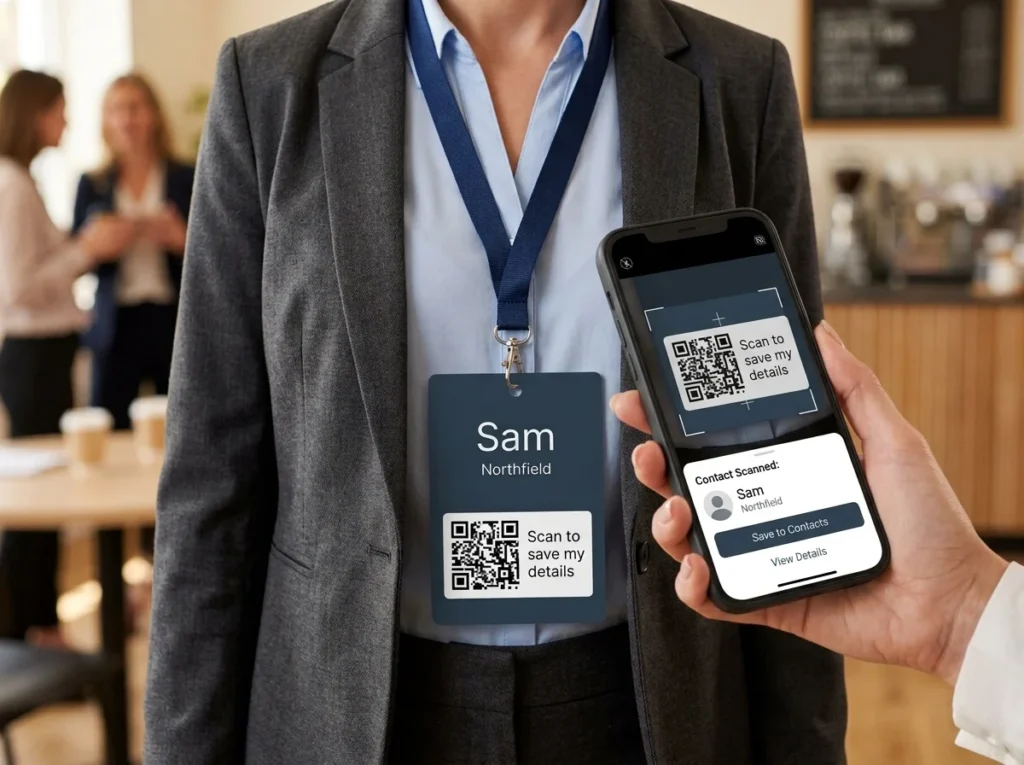
A vCard QR code on each attendee’s badge saves their name, company, email and the details they chose to share straight into the other person’s phone. No typing, no misspelt email addresses, and the details can be withdrawn after the event.
USES: VCARD QR CODEThe agenda, the map and the WiFi
One code on every badge opens a page with the schedule, room map, speaker list and WiFi details. When a session moves or a room changes, update the page and every badge in the building shows the new version.
USES: URL QR CODECheck that the visitor works for you
A code on a technician’s, carer’s or security guard’s ID badge opens a page on your website with their photo, name and role. When someone leaves, change the page to say the badge is no longer valid, without collecting the card back first.
USES: URL QR CODEReviews for the person who helped
A small code on a name tag in a shop, hotel or restaurant opens your review page while the customer is still standing with the member of staff. Point it at the review form itself, and give each team member their own code if you want to see who is earning them.
USES: URL QR CODEWiFi on the lanyard insert
A WiFi QR code on the back of the badge or a lanyard insert joins the venue network in one scan. It ends the password on the slide that nobody can read from the back row.
USES: WIFI QR CODEVIP extras for fans and members
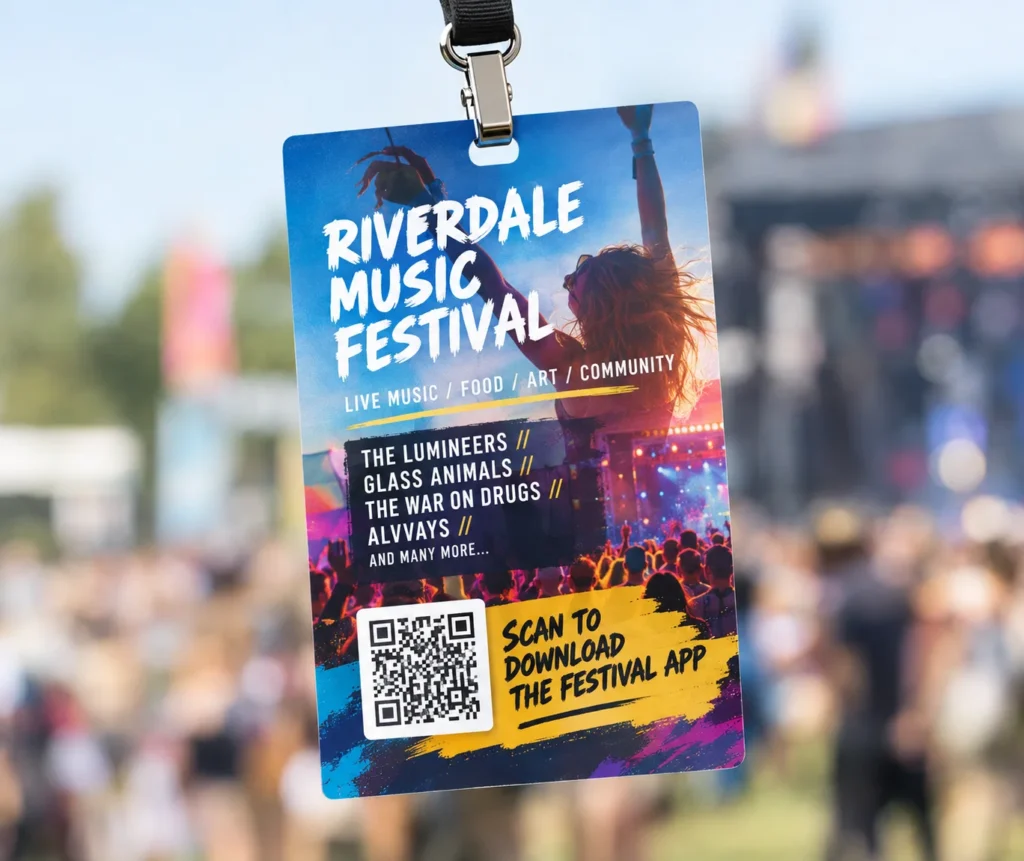
A code on a VIP pass, crew badge or collectible pin opens the backstage video, the unreleased track or the member offer. After the night, the same code can point at the next tour or the merch shop.
USES: LINK LIST QR CODEWITHOUT OPENQR
- One-sided badge facing the wearer's chest for half the day
- Entry code on the front, photographed and reused at the door
- Phone numbers in static codes that work for ever
- A former employee still carrying a badge that vouches for them
WITH OPENQR
- Shared code printed on both sides of the badge
- Public code on the front, entry code kept out of sight
- Opt-in contact cards that close when the event ends
- Edit the page behind the badge the day someone leaves
What goes wrong with QR codes on badges
Badges fail on content before print. The scan itself is easy: the badge is flat, the code can be 50 mm across, and the person scanning is half a metre away. The trouble is that one badge often has to do three different jobs. It is a ticket that gets checked at the door, a public notice board for the agenda and the WiFi, and a contact card for the person wearing it. Those jobs need different codes, made in different ways and shown to different people, and the usual mistake is merging them into one square or putting the wrong one on the outside.
The second problem is that a badge carries a person’s name and keeps working after the reason for it has gone. Static codes cannot be changed, so a contact card printed in March still hands out the same mobile number in October, and a staff badge still opens the same page after the job has ended. A dynamic QR code keeps the printed badge fixed and the destination in your hands. The agenda can follow the schedule, a contact card can be closed when the event is over, and a staff page can say a badge is no longer valid the day someone leaves.
One code for everyone, or one for each person
Every badge QR code is one of two kinds. A shared code is the same on every badge and points at something the whole room needs. A personal code is different on every badge and belongs to the person wearing it. Decide which codes are which before the badge is designed, because they are produced, placed and closed down in different ways.
| Code on the badge | Shared or personal | Where it goes | After the event |
|---|---|---|---|
| Agenda, map and WiFi page | Shared, one code | Both sides of the badge | Point it at recordings, photos or next year’s dates |
| Feedback form | Shared, one code | Back of the badge or lanyard insert | Close the form and thank people for taking part |
| Contact card | Personal, one per attendee | Front, beside the name | Remove personal details or close the card |
| Check-in or entry | Personal, from your ticketing system | Back of the badge, or the phone only | Expires with the ticket |
| Staff verification | Personal, one per employee | Front, below the photo | Mark as no longer valid when they leave |
| Review page on a name tag | Shared, or one per team member | Front, small and low | Stays live as long as the tag is worn |
A shared code is one dynamic QR code, placed into the badge artwork like any other graphic. A personal code needs one QR code for every name on the list, which nobody wants to make by hand. The OpenQR API creates them from the registration list: one dynamic vCard per attendee, named after the person, filed in a folder for the event, and exported as SVG for the badge template. Most badge design tools and print shops can place a different image on each badge from a spreadsheet column, so the code file names only need to match the rows.
Personal codes count towards your plan, one per badge. For a large conference or a company-wide ID roll-out, contact us and we will set up a plan sized to the number of badges. The entry code is the one personal code that should not come from a QR generator at all. It is a ticket, and it needs to be single use and checked against the guest list, which is the job of your ticketing or registration system. How check-in and lead capture work on the day is covered in our guide to QR codes for events.
Personal details on a badge
A contact card on a badge is personal data on public display. Anyone close enough to read the name is close enough to scan the code, including people the wearer never chose to meet. Make the card opt-in at registration, let each attendee choose which fields it carries, and default to work details: name, company, job title and work email. A mobile number should be something an attendee adds, not something the organiser includes because it was on the form.
Then decide when the cards close. With a static vCard the details sit in the pattern itself, so they cannot be changed or withdrawn once the badge is printed. With a dynamic vCard you can edit or close every card after the event, or change any single one the moment an attendee asks. Say on the registration form how long the cards stay live, and do what it says. OpenQR does not store scanners’ IP addresses, so the scan counts you see do not identify the people who scanned. Work with your own data protection advisor on what your event needs to tell attendees. For contact codes people keep after the event, such as the one on a business card, see QR codes on business cards.
Staff ID badges have the same issue the other way round. A verification code is only useful if it stops vouching for someone when they leave, and a dynamic code does that from the dashboard: change the page to say the badge is no longer valid and give a number to call. Host the verification page on your own website so the person scanning can see your domain in the address bar. A QR code can be copied as easily as a logo, so treat it as a quick check that adds to the photo and the phone call, not as proof on its own.
Where to put a QR code on a badge
Name first, code second. The name is what people read across a room, so it stays at the top in large type and the QR code goes in the lower half, beside or below it, with a line saying what the scan does: scan to save my details, scan for the agenda. Keep it clear of the slot or hole at the top where the clip goes, and away from the bottom edge where the badge is held. If attendees can choose their badge holder, a matte holder is better than glossy clear plastic, which reflects the ceiling lights straight into the camera.
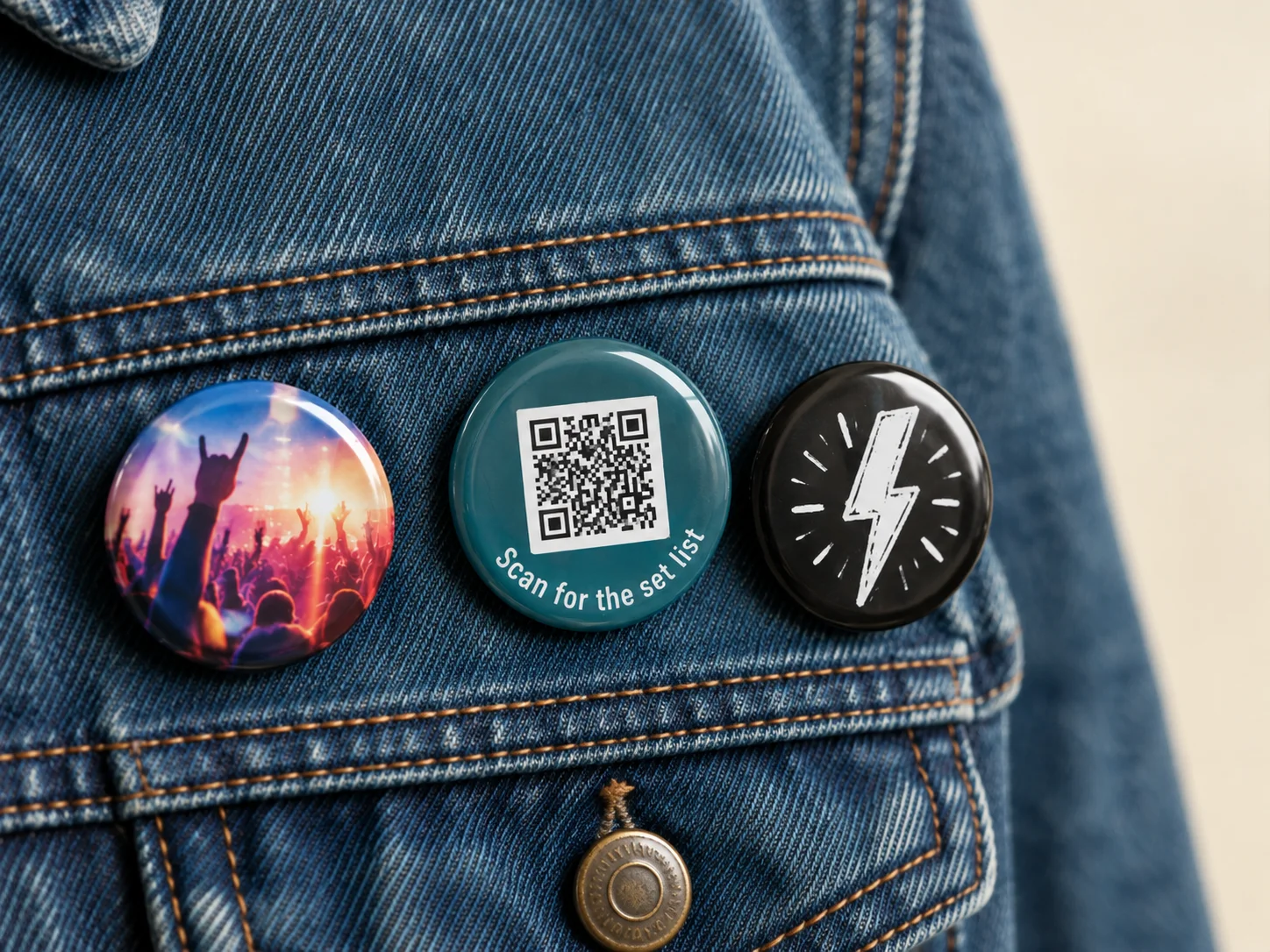
Size takes care of itself on most badges. Scanning distance divided by ten puts a code read from half a metre at 50 mm, and an A6 or larger conference badge has room for it. A credit-card-size ID badge is scanned close up, so 20 to 25 mm is enough. The exception is the pin-back button, where the face is domed and the printed edge wraps round the back. Use a 44 mm button or larger, keep the code inside the flatter centre at about half the diameter, and use a short dynamic link so the grid stays coarse. Everything else about print files is in our guide to print QR codes.
Make every badge code dynamic before the badges are printed. The schedule will move, the WiFi password will change and someone will ask to have their phone number removed, and a static code can do nothing about any of it. See static vs dynamic QR codes for the difference, and trackable QR codes for comparing scans from the badge with scans from the banners and the slides. QR codes for events covers the rest of the event print, and for name tags in shops and hotels, how to create a Google review QR code covers the review page.
Then test the badge as it will be worn. Print one at final size, put it in the real holder on the real lanyard, and let it hang. Scan it from half a metre on two phones under the venue lighting, once from the front and once after it has turned round. For personal codes, scan three badges from different parts of the list and check that each one opens the right person. One wrong row in the spreadsheet puts somebody else’s details on a stranger’s chest.
Lanyard badges turn round. The shared code belongs on the front and the back.
Entry codes go on the back or in the phone. The front is for codes anyone may scan.
Attendees choose what their card shares. Close the cards when the event ends.
Create personal codes from the registration list, then check three badges by hand.